OpenCAGE can be driven by an AI assistant, such as Claude, through the Model Context Protocol (MCP). You describe what you want — "create a new level which spawns the player in a corridor built from SCI_AndroidLab's pieces" — and the assistant does it in OpenCAGE:
The assistant works in the OpenCAGE window you have open, through the same code the editor's own menus and dialogs use. Everything it does appears in the editor and the Viewport as it happens. Script changes land on the editor's undo history, and nothing is written to the game until it (or you) saves.
OpenCAGE ships a small program for this, OpenCAGE.MCP.exe, in the folder OpenCAGE is installed in, beside OpenCAGE.exe. On Steam, find that folder with right-click OpenCAGE → Manage → Browse local files. Your AI app runs that program. If OpenCAGE isn't open, the program starts it the first time the assistant uses it.
Claude Desktop: open Settings → Developer → Edit Config and add OpenCAGE to claude_desktop_config.json, using the path to your OpenCAGE folder (backslashes doubled), then restart Claude Desktop:
{
  "mcpServers": {
    "opencage": {
      "command": "C:\\Path\\To\\OpenCAGE\\OpenCAGE.MCP.exe"
    }
  }
}
Claude Code: add it once from a terminal:
claude mcp add opencage -- "C:\Path\To\OpenCAGE\OpenCAGE.MCP.exe"Other MCP apps: any app that can run a local ("stdio") MCP server works the same way: give it the path to OpenCAGE.MCP.exe. The program also takes these optional arguments:
--editor <path> — the OpenCAGE.exe to start, if not the one beside it (setting the OPENCAGE_EXE environment variable to its path does the same);--no-launch — only work with an OpenCAGE that is already open;--launch-at-start — start OpenCAGE as soon as the app connects, rather than on the assistant's first request;--toolsets <names> — offer the assistant only some groups of tools at first, for apps that struggle with long tool lists (for example --toolsets core,script,world,cameras). The assistant can ask for the rest when it needs them. The groups are core, script, flowgraph, zones, viewport, world, cameras, characters, lights, sound, animation, assets, porting, gamedata and game (all offers every group);-- — passed to OpenCAGE when the program starts it, for example -- -disable_viewport.Assistants can only reach OpenCAGE while Options → Misc → Allow AI Assistants (MCP) is ticked. It is on by default. Untick it and nothing can drive the editor: an assistant that tries, even one that started OpenCAGE itself, is told to turn the option back on.
OpenCAGE.MCP.exe passes the assistant's requests to the open OpenCAGE over a local connection. Only programs running as you, on your PC, can use it. With more than one OpenCAGE open, the first one opened takes the requests.While the assistant is running one of OpenCAGE's tools, the left end of the status bar, along the bottom of the OpenCAGE window, shows a blue label: AI assistant working: tool..., naming the tool, such as AI assistant working: Open level... or AI assistant working: Find composites.... OpenCAGE's usual status messages (loading, saving, undo) appear beside it. The label stays for about three seconds after each call, so an assistant making several calls in a row shows one steady label, and it goes once the assistant stops. While it's up, let the assistant finish before you edit or close OpenCAGE.

Closing OpenCAGE while a tool is running asks first, in a box titled Close OpenCAGE?: An AI assistant is in the middle of a task in OpenCAGE (tool). Closing OpenCAGE now stops it part-way through. Close OpenCAGE anyway?
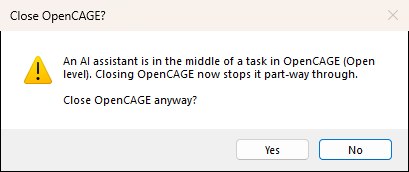
While the question is up, the assistant waits for you: anything new it asks OpenCAGE for is turned away until you've answered, and a level that's loading carries on loading but doesn't open its panels until then. The question only comes up while a tool is actually running. Between calls, even while the label is still showing, OpenCAGE closes as it always does.
These are the tools the assistant is given. You don't call them yourself — describe what you want and the assistant picks them — but knowing them helps you ask for what's possible.
| Area | Tools |
|---|---|
| Levels & game | get_editor_state, list_levels, load_level, create_level (optionally importing composites), duplicate_level, delete_level, diff_level (what has changed since the last save or a backup), save_level (optionally Save & Build, choosing which bakers run), list_backups, create_backup, restore_backup, delete_backups, launch_game, launch_options (the Launch Game options), close_game, game_directories, get_player_setup, set_player_start (where the player starts, and with what), runtime_utils (Live Link to the running game, including its live settings, the Debug Menu and the script debugger), capture_environment_maps (captures EnvironmentMap cubemaps in the running game) |
| Undo & activity | undo, redo, undo_group (makes several requests one undo step), get_undo_history, get_activity (what the assistant's last requests did, and how far a long one has got) |
| Finding things | find_composites, get_composite, describe_entity, get_effective_parameters (the values a placement really ends up with, after aliases and links), get_instance_overrides, find_entities (by name, type, value or place, forgiving misspellings), find_references, trace_links (what drives an entity, and what it drives, across composites), find_links, get_placements, list_dead_proxies, list_function_types, describe_function_type, get_usage_patterns (how the shipped levels wire up a function type or archetype), list_enums, list_enum_string_values |
| Rooms & the world | find_places (a room by name: a zone, a composite, an instance or a model), get_bounds, raycast (rays, the floor under a point, line of sight), sample_space (points on a room's free floor: its centre, a loop round it clear of the walls, a grid), transform_points (between world and composite space, and rotations that look at a point), drop_to_floor, query_navmesh (nearest point, reachability, path length), export_region_collision. These read the level's collision as it stands in the editor, unsaved changes included, with or without the Viewport. query_navmesh is the exception: it reads the navmesh as the last Save & Build made it. |
| Scripting | create_entities (functions, composite instances, variables, aliases and proxies, with positions in the composite's space or the world's, parameters, links and flowgraph nodes), create_composite, set_parameters (for one placement of a composite or all of them), remove_parameters, rename_entity, rename_pin, delete_entities, copy_entities, move_entities, add_links (making the proxies and aliases a link between composites needs), remove_links, set_trigger_sequence, script_batch (several edits as one step), clear_instance_overrides, retarget_proxy, remove_references |
| Composites | manage_composites (rename, move, folders, delete), move_into_composite, deinstance and group_into_composite — the De-instance Composite Instance and Create Composite From Selected commands — and duplicate_composite (optionally switching chosen instances to the copy, as Create Composite Variant does) |
| Flowgraphs | get_flowgraph, layout_flowgraph (gives a composite shown as a link list flowgraph pages that draw all its links), edit_flowgraph_pages (including arrange, as Arrange Page does), edit_flowgraph_nodes, capture_flowgraph |
| Cameras & CAGEAnimation | create_camera_animation (a camera, the CAGEAnimation that moves it and what starts it, from points you give or a loop round a room), animate_camera_path, get_cage_animation, find_cage_animations, animate_parameters (keyframes; retiming, offsetting, reversing), check_cage_animation (whether it will play in game, and what's missing if not), set_animation_events, preview_cage_animation (in the Viewport, optionally looking through the animated camera, or held in the running game over Live Link), set_animated_model |
| Characters | spawn_npc (a human, android or the alien, from the shipped archetypes), describe_npc, set_npc, create_npc_route (patrols), play_character_animation, get_character_appearance, set_character_appearance, check_character_appearances — see the Character Editor |
| Lights | list_lights (the lights in a room and the controls that really set them), set_lights (colour, intensity, flicker, for one placement or all), add_light |
| Zones | get_zones, get_zone_links, create_zone, set_zone_contents, create_zone_link, delete_zone, merge_zones, check_zones, analyse_zones, link_zones, auto_zone |
| Entity resources | get_entity_resources, set_renderable (model and materials), set_collision, set_physics_system |
| Collision & physics | list_collision_proxies, import_collision_proxy, list_physics_systems, import_physics_system, export_collision_mesh |
| Other levels | search_level, find_in_levels (which levels use something), describe_level_composite, port_composites (see Composite Porting), export_composites_to_levels, release_level_cache |
| Models | list_models, describe_model, place_model, import_model (optionally placing it, with collision), export_model, edit_model |
| Materials & textures | list_materials, describe_material, create_material, edit_material, list_material_permutations, retry_shader_harvest, list_material_mappings, edit_material_mapping, list_textures, describe_texture, import_texture, export_textures, edit_texture, find_asset_users (which materials, models and placed entities use a texture or material) |
| Sky & UI | get_galaxy, set_galaxy, list_ui_files, edit_ui_pak |
| Animation | list_animation_sets, list_animations, describe_animation, preview_animation, list_skeletons, export_animations, import_animation, remove_animation, edit_animation_events, check_animations, get_character_animation_profile (what a character can play), describe_animated_prop, list_camera_clips, list_blend_sets, edit_blend_set, list_anim_trees, get_anim_tree (optionally with where the Animation Tree Editor draws each node, its ghosts, and which copy draws each link), find_in_anim_trees, edit_anim_tree (a node it adds can be given its place on the graph), edit_anim_tree_layout (arranging a tree, putting it back to the automatic layout, moving nodes, adding and removing ghosts, moving links between copies; written into ANIMATION.PAK straight away and can't be undone - a running game holds that file open, so the change then waits for the file's next save unless the assistant closes the game first, and a layout of a tree with unsaved changes waits to be saved with them), open_anim_tree (shows a tree in the Animation Tree Editor), capture_anim_tree (a picture of a tree as the editor draws it, open or not), get_behaviour_tree, edit_behaviour_tree |
| Sound | list_sound_banks, describe_sound_event, export_sound, replace_sound, place_sound, list_dialogue_lines, find_spare_sound_events — see Sound Events |
| Packages | export_composite_package, inspect_composite_package, import_composite_package, mods |
| Configuration & text | list_config_files, read_config, write_config, edit_config_elements, get_config_record, set_config_record, reset_configs, list_strings, set_strings, list_text_databases, set_text_databases — what the configuration editors edit |
| Editor & viewport | open_composite, select_entities, editor_options, capture_viewport, get_viewport_state, set_viewport_view, set_viewport_camera (optionally looking through a camera entity), pick_in_viewport (what is at a point of the picture), viewport_action, place_in_viewport, get_composite_preview |
Asked for "a new level which spawns the player in a corridor built from SCI_AndroidLab", an assistant works through something like this:
create_level makes and opens a new level, as File → Create Level does.search_level on PRODUCTION/SCI_ANDROIDLAB finds Archetypes\Script\Mission\SpawnPositionSelect, the composite that holds the player's Character. It also finds the corridor pieces under AYZ\Science\...\Corridor_Elements, and where the level places them.port_composites brings them in, with their models, materials, textures and collision. The player's display models (DisplayModel:RIPLEY_FP and the suit variants) come along automatically.create_entities places the floor, wall and arch pieces in the new level's root composite, spaced by their sizes. It also places a SpawnPositionSelect instance on the floor, with spawn_on_reset set to true so the player spawns there when the level starts.create_composite can add some script as well. For example, a light that a ThinkOnce switches on at the start. Its flowgraph page is laid out automatically.capture_viewport lets it look at the result, and save_level with Save & Build writes the level and builds its navmesh, lighting and the rest. Then it's ready for Launch Game.Asked to "make a CAGEAnimation that moves a camera round the room called Canteen", an assistant works through something like this:
find_places finds the room by its name (forgiving misspellings): on Torrens, the Canteen composite and the Zone_Canteen zone that streams it.sample_space picks points round the room at eye height, clear of the walls and furniture, by casting rays against the room's collision as it stands in the editor (your unsaved changes included). Each leg between points is checked for line of sight.create_camera_animation does the rest as one undo step: a CameraResource, a CAGEAnimation that moves it smoothly along those points at a steady speed (looping, if asked), and the links that switch the camera on, start the animation when the room loads, and hand the view back at the end.check_cage_animation confirms nothing is missing for it to play in game, and preview_cage_animation shows a few frames through the camera in the Viewport, or a frame from the running game over Live Link. Then save_level.MCP apps that support prompts also list a few ready-made tasks, such as a camera fly-through, zoning a level, and porting and placing content from another level.
AI: prefix ("AI: Add 17 entities"). Edit → Undo (or asking the assistant to undo) takes it back. This covers everything in the level's script: entities, parameters, links, trigger sequences, CAGEAnimations, entity resources (models, collision, physics), flowgraph pages and nodes, and composites (new, renamed, moved, deleted, De-instance, Create Composite). It also covers changes to the level's materials, material mappings and textures. A task that takes several requests can be made one step, so a single undo takes the whole task back. The assistant won't undo a change you made unless you ask it to. Porting composites, imports, and changes to animations, sounds, behaviour trees, the user interface (UI.PAK), configuration files and text can't be undone, as when you make them yourself; the tools that change files every level shares can do a dry run first.An assistant can choose what the game is started with (launch_options), start it (launch_game), and, while it runs with Live Link, work with it through runtime_utils. Its script edits reach the game as they're made, as yours do, and it can call methods on entities, take screenshots of the game, change its live settings, and use the game's Debug Menu and OpenCAGE's script debugger.
launch_options reads and sets the options in the Launch Game window, by name; given none, it reports them all. Those for OpenCAGE's runtime utils in the game are:
live_link (the Live Link box), hot_reload and debug_entities, from the Debug tools group, and unlock_mouse and cap_fps, from Game options, with hot_reload_key, unlock_mouse_key and cap_fps_rate. debug_entities is the one Debug entities box; the old names debug_text, debug_text_stacking, debug_environment_marker and debug_position_marker are still taken for it: any of them true turns it on and all of those given false turn it off, unless debug_entities is given too, which decides.possess_characters and possess_key.debug_menu, the Debug Menu box, and debug_menu_key, the key that opens it.dont_write_saves, Don't write saves. It's part of the Debug Menu, so it only works with debug_menu on: with it off, the assistant is told that the game will write its saves as usual.cinematic_tools is still taken, though Cinematic Tools are part of the Debug Menu now, in its Cinematic group. true is taken as debug_menu: true, unless debug_menu is given too, and false changes nothing. The assistant is told so each time it's used.The window's other options are there too: render_constant_ambient, no_ui (No HUD) and patch_current_gen_optimisations (Current-gen script fixes), written to the game executable straight away, and the UI tweaks quit_to_menu_on_death and debug_loadscreen. Options Launch Game no longer has are still taken, and change nothing: skip_frontend is ignored, as skipping the title screen goes with the level (a launch into a level always skips it, one at the main menu never does), and ui_memory_overlay, memory_logging, debug_checkpoints and level_selection come with a note saying where each went (the Debug Menu's Performance > Memory, Game > Tools and Game > Game flow; memory logging is gone).
The runtime utils options take effect the next time the game is started. launch_game puts the runtime utils in the game folder, or takes them out, as they say, writes the game executable's patches and sets up the UI tweaks as the Launch Game window does, and its answer says whether this run has the runtime utils options, Possess characters, the Debug Menu and Don't write saves. A level given to launch_game (the open level when none is given) always starts past the title screen, and menu starts it at the main menu, so its own skip_frontend is ignored too.
runtime_utils with action debugger uses the script debugger, which also needs the game started with both Live Link and the Debug Menu. debugger says what to do:
state (the default): whether the level's scripts are held, and whether at a breakpoint; the last breakpoint hit, with its method and entity, the composite and instance path it's in, the time on the scripts' clock, the steps made since, and the calls that led to it; and the breakpoints.set: a breakpoint on entity in composite (the open composite unless it's given), stopping on all its methods, or only on method. It's set in the instance at instance_path; without one, in the instance the open composite was reached through from the level's root, or in every running instance if the composite isn't open, or was opened on its own. every_instance sets it in every one.remove: takes that breakpoint away, or with method, only that method.list: the breakpoints, each with its methods, whether it's stopping the game, the running instances it's in, its hits and any problem. clear takes them all away.continue; step, one round of calls; step_frame, one whole frame of the game; and pause, which holds the scripts now.pick: the entity under the game's crosshair (with the crosshair inspector on, on the Debug Menu's World > Inspect tab), found in the level open in OpenCAGE and selected there unless select is false, as Select Entity Under Game Crosshair does.states: the state of each entity of composite in one running instance (started, enabled, locked...), up to limit of them (200 unless given). The instance is picked as for set; if that leaves more than one running, it says so instead.The breakpoints are the same ones the flowgraphs draw: one the assistant sets shows on its node, and the ones you set are in its list. A breakpoint stops the whole game until something lets it go on, so if an assistant leaves the game held, press Continue on the composite toolbar, or F8 on a flowgraph. Breakpoints aren't part of the level: they aren't on the undo history, and aren't saved.
runtime_utils lets it check what the game is running, call methods on entities, take screenshots of the game, work the Debug Menu and stop the scripts at breakpoints (see In the Running Game). set_viewport_view's live_link_camera links the game's camera and the Viewport's. See Live Link.launch_options dont_write_saves (with debug_menu), and the game writes nothing to your saved games while the assistant tests.