Replace Weapon Model puts a model of your own on one of the game's weapons or held items - the shotgun, the revolver, the flare, the medikit and the rest - in the player's hands, in NPCs' hands and as the pickup on the floor, all in one go. The weapon keeps everything else it had: its animations (a pump still racks when you fire, a flare's cap still comes off), its sounds, its damage and its scripts.
Open it by right-clicking a weapon's composite in the composite browser - Required_Assets\Weapons\Shotgun\Base, say - and choosing Replace Weapon Model..., or from Level Tools → Replace Weapon Model... in the Model Editor.
It changes the weapon's composites in the open level (each level carries its own copies of them), so it never touches the game's shared files. It reaches the game with a Save and Build.
A weapon is drawn part by part - the shotgun's body, its pump, the shell the hand loads - and each part is carried by a bone of the weapon's own small skeleton, which the weapon's animations move. Your model has to be built where the retail weapon is, so that it sits in the hands the same way.
Press Export Reference... to write the retail weapon as a model file (glTF, FBX, OBJ or COLLADA): one mesh per part, named REF_<PART> (REF_PUMP, REF_SHELL...), the third-person model as REF_TP_<PART>, and an empty for each marker (REF_MARKER_MUZZLE_POS_MARKER is where shots come from). Open it in your modelling program and build or line up your weapon over it:
PUMP is put on the shotgun's pump, so it racks with the gun. Everything else goes on the main body.REF_... is ignored when the model is read.Export it in the same format you imported the reference in, and pick it as the window's Model. Small corrections don't need a trip back to your modelling program: Offset and Rotation move the model in the weapon's space (for the guns X runs along the barrel and Z is up), and Scale resizes it.
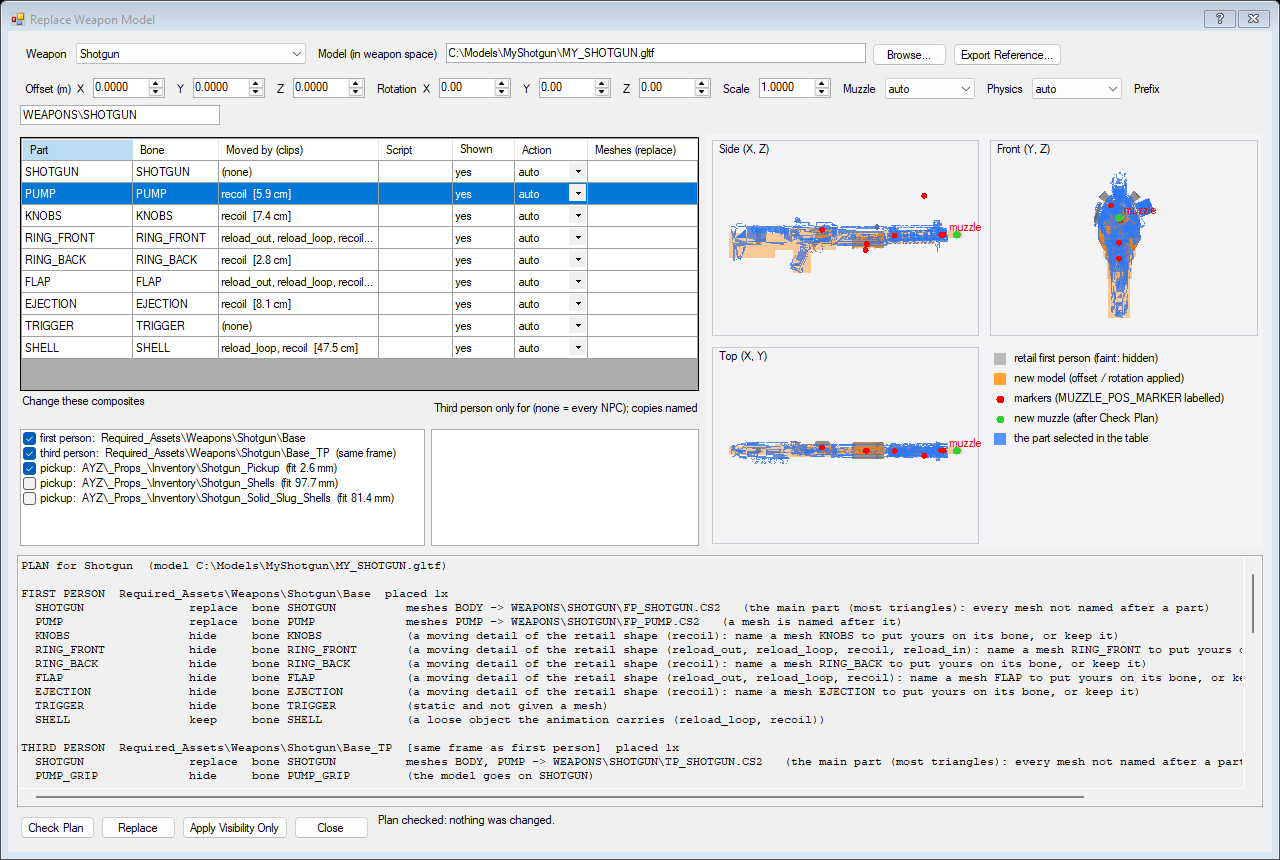
Pick the Weapon and the Model. The three views on the right show the retail first-person weapon in grey (parts that will be hidden fade out) with your model over it in orange - side, top and front - with the markers as red dots, so you can see straight away whether the grip, the pump and the barrel line up.
Check Plan works out everything the replace would do and lists it below without changing anything: what happens to each part, which models and materials are made, which markers move and where to, and the clearance check. Replace makes it. Imported models can't be undone (they stay in the level); the changes to the weapon's parts and markers are ordinary undo steps.
The table lists each part of the first-person weapon: the bone that carries it, the animations that move it (with how far), whether a script shows or hides it, whether it's shown now, and what will happen to it:
The part keeps its place in the weapon - its bone - so your geometry is moved exactly as the retail part was. Hidden parts aren't deleted: set a part to show and press Apply Visibility Only to bring it back without importing anything.
A weapon is drawn by several composites, and the list under the table says which will change:
Base, the player's weapon. Your model is imported for it with its own copies of its materials (named ..._FP), set up the way the game's first-person weapons are, so it draws without clipping into walls and in front of the player's arms.Base_TP, the weapon in NPCs' hands (for thrown items, also the one that flies and lands, and often the pickup). All of your model goes on its main part.AYZ\_Props_\Inventory\Shotgun_Pickup or the physics prop an NPC drops when it dies. Each prop draws its own copy of the weapon in its own position, so OpenCAGE lines the prop's retail model up with the first-person one to find where your model goes; the figure beside it says how well they matched. A prop that doesn't match well isn't ticked. Untick any you want left alone.A prop with a physics body of its own (a dropped gun, a thrown item) gets a new collision hull made from your model when its shape is very different from the retail one, so it lands and rests on your model's shape rather than the old one's (Physics: auto, hull or keep).
Muzzle: with auto, where the shots come from - the muzzle marker, with the muzzle flash, smoke and lights placed within 12 cm of it, in the weapon and in the composites that place it - moves by as much as your barrel is longer or shorter than the retail one, measured along the line the muzzle marker points down. A barrel the same length moves nothing. keep leaves them where they are.
Every NPC carrying a weapon draws the same third-person composite, so by default they all get your model. To give it to some of them only, tick them in the list beside the targets. OpenCAGE copies the weapon those NPC types carry (NPC_Shotgun_Standard, say) and its Base_TP under the Prefix folder, switches just those NPC types to the copies (as Create Composite Variant does) and puts your model on the copy. Everything else about the weapon - damage, accuracy, reloads, sounds - stays the retail one.
The parts you keep still move with the weapon's animations - the shotgun's shell is carried from the hand into the gun on every reload. If your model is a different shape, a kept part can poke through it. The check plays every animation of the weapon's skeleton, frame by frame, and measures how far each kept part rises out of the top of your model, or out of its sides, while it is inside it - and the same on the retail weapon, so you can tell what retail already does. It says when and by how much, and how much to raise your model (Offset Z) to cover it; or set the part to hide.
WEAPONS\SHOTGUN by default): FP_<PART> for each first-person part you replace, TP_<PART>, and one per prop. Replacing again replaces them and removes the old ones once nothing draws them...._FP).All of it is in the open level: the game's shared files aren't touched, and other levels keep the retail weapon.
An AI assistant connected to OpenCAGE has the same feature as three tools: describe_weapon (every weapon of the level, or one with its parts, the bones and animations that move them, its markers, props and NPC types), export_weapon_reference (the retail weapon as a file to model against) and replace_weapon_model (the replace; dry_run lists the whole plan step by step with the clearance check; with no path it only shows or hides parts).
