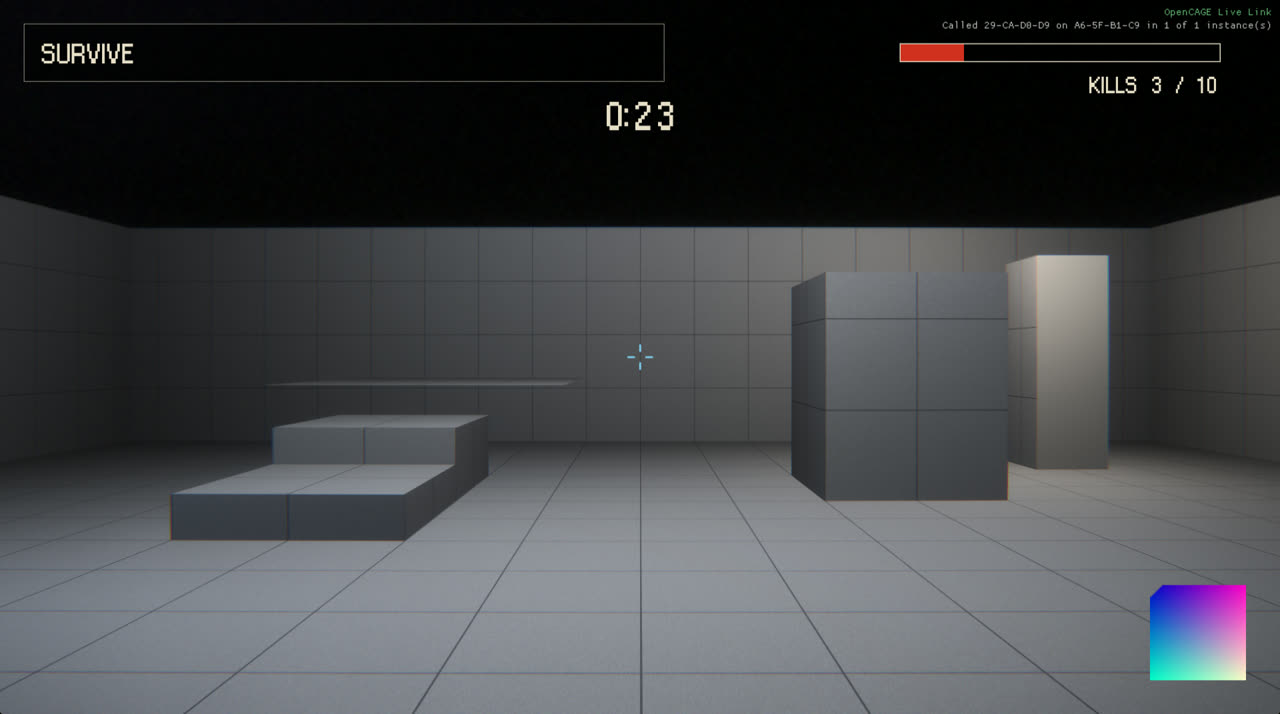
The HUD Overlay Builder gives a level HUD elements of its own - a timer, a health bar, a kill counter, objective text, a crosshair, a panel behind them - drawn over the game's own HUD while the level is played, and driven by the level's script.
Open it from View > Level Config > HUD Overlay Builder with the level open. Lay the elements out, press Save to Level, link the values you want shown to the pins of the composite it makes, save the level and play.
The overlay is a Scaleform movie OpenCAGE makes for you and keeps in the level's own folder (DATA/ENV/<level>/UI/OVERLAYS/<NAME>.GFX). The level's script loads it from there: nothing shared by other levels is changed (not UI.PAK, not the game's exe), so every other level and the retail campaign keep the game's HUD, and it works however the game is started. A mod carries the overlay as one of the level's files.
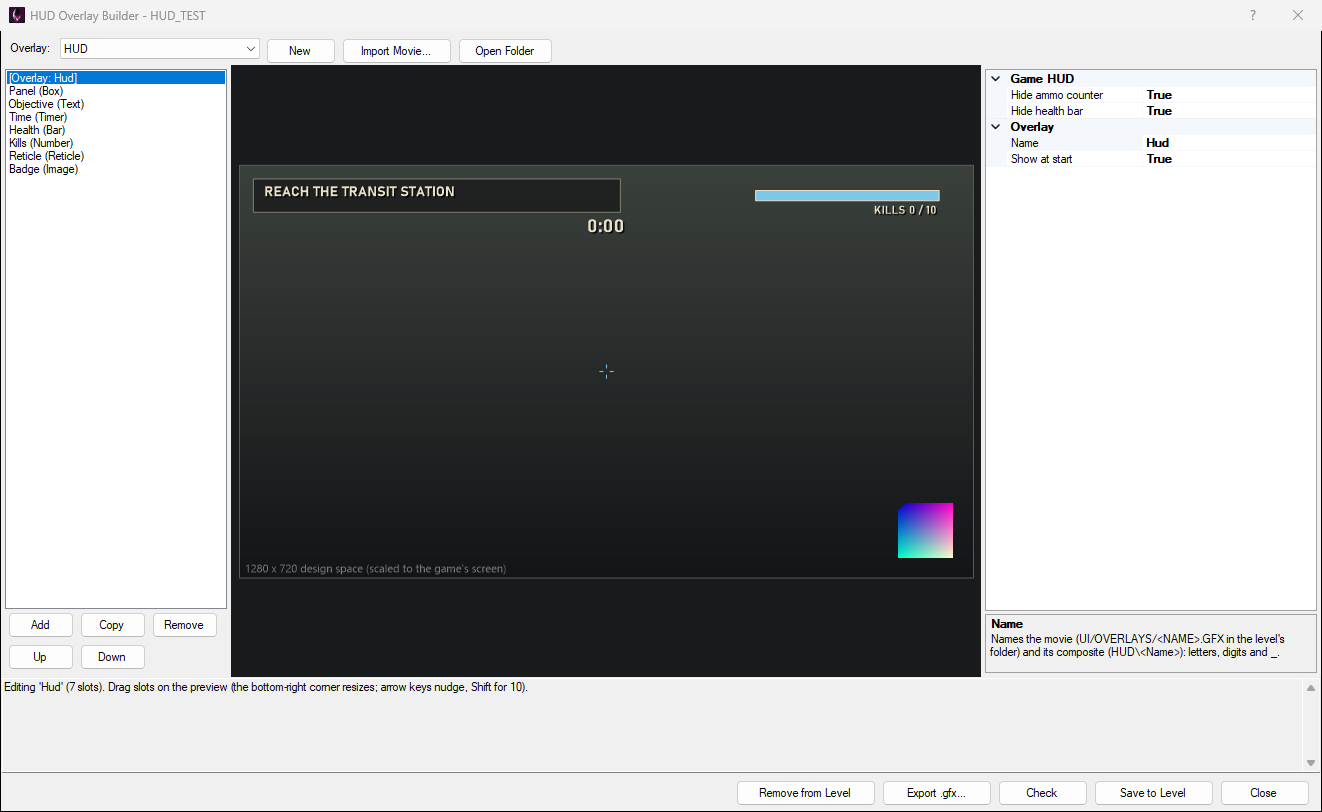
At the top, Overlay picks the level's overlay to edit (a level shows one - see The Script It Makes); New starts one from an example (an objective, a timer, a health bar and a counter), and Import Movie... brings in a movie made elsewhere (see Movies of Your Own).
On the left is the list of slots - the elements of the overlay - with Add, Copy, Remove, Up and Down (slots later in the list draw over earlier ones). The first entry is the overlay itself: its name, whether it shows as the level starts, and the parts of the game's own HUD to hide.
The middle is the preview: the overlay's 1280x720 design space. In the game it is scaled to fit the screen and centred, whatever the resolution (on a 16:9 screen it fills it). Drag a slot to move it, drag its corner handle to resize it, or use the arrow keys (Shift for steps of 10). The preview draws with Windows fonts in place of the game's own, so text sizes are close but not exact.
On the right are the selected slot's settings. Below, Check builds the movie and checks it without writing anything, Save to Level writes it and makes its script, Export .gfx... saves the checked movie elsewhere and Remove from Level takes the overlay out.
KILLS 3 / 10).m:ss, optionally with tenths.Text uses the game's own fonts ($JixellationBold, $JixellationReg, $Isolation, $JectRexBold, $NostromoBoldCond), with an optional dark outline so it reads over anything. Every slot has a colour, an alpha and a Visible setting for how it starts.
Each slot that shows a value has a Source:
Tick Show/hide pins on a slot to get Show <slot> and Hide <slot> pins for it.
Save to Level makes (or remakes) a composite HUD\<Name>, as one undo step, and places an instance of it in the level's root the first time. Inside it:
FlashScript that loads the overlay's movie on the game's ChallengeMapOverlay layer as the level starts;show and hide pins for the whole overlay (it starts shown or hidden as Show at start says), the value pins and any Show / Hide <slot> pins;Thinker that sends every value to the movie ten times a second, with a FlashInvoke per slot calling hudSet(slot, value); the show/hide pins call hudShow(slot, on) (slot -1 is the whole overlay). Slots are numbered from 0 in the list's order.One overlay per level. The overlay goes on the game's ChallengeMapOverlay layer: that is the only layer the game loads a script's movie on as soon as the level makes it (on a layer of any other name the movie is never loaded, so nothing would show). A level has one such layer, so a level shows one overlay - put all its elements in one design - and a challenge map that has its own challenge overlay can't have one; Save to Level says so and writes nothing. The layer is hidden while the game is paused, and the overlay answers the calls the game makes on that layer.
Remaking it replaces everything inside the composite but keeps the pins that are still wanted, so links you made to them on the instance stay. Keep your own logic outside the composite. The script only needs a plain save - no build.
Copied or renamed the level? Its overlays came with it, but the FlashScript still names the old folder: saving the overlay again from the builder points it at the level's own (so does the AI assistant tool's fix_paths).
On the overlay's settings, Hide ammo counter and Hide health bar take those parts off the game's weapon HUD (the torch battery meter is part of the health bar). The game shows the ammo counter again after every shot, so a plain hide never sticks: the composite takes the part off the weapon HUD's display list instead, and does it again every half second so it stays off after a checkpoint. The rest of the game's HUD is untouched.
When the game loads an overlay it makes the movie's root object and then calls methods on it - Init as the layer loads, and every FlashInvoke of the level - without checking that the object exists. If the movie's ActionScript can't be loaded, there is no root object, and the game crashes on its first call. A Halo HUD built by hand did exactly that: two members of one class shared the name haloAim, so the whole class was refused and the game crashed as the level opened.
So every movie is checked before it is written, the way the game's ActionScript machine would load it: the file and its tags, every class and its members (no two of one name), and every method's code - each instruction, every branch, the stack and scope depths along every path, the locals. A movie that fails is never written; the window (or the tool) says why. The check passes every movie the game ships with, and refuses that Halo HUD movie for its two haloAim members.
It then checks the calls the level will make: a FlashInvoke on the overlay's layer naming a method the movie doesn't have, or with the wrong number of arguments, does nothing in the game (no crash), and is listed as a note.
Import Movie... uses a movie made in Flash / Animate (or another tool) as one of the level's overlays. It is checked first and refused if it fails. It gets a composite with the FlashScript and show / hide pins; call your movie's own methods with FlashInvoke (layer ChallengeMapOverlay, the method's name, and an invoke type passing 0 to 3 ints or floats). The game calls Init(layer name) on the root as the layer loads, so that is a good place to set the movie up. On that layer the game also calls init_image_substitution, resizeListener and refresh_leaderboard_timer on the root: give your movie those methods (they can do nothing) - the check notes any it lacks.
An overlay movie made by the builder keeps its design inside it, so importing one (from another level, or an exported .gfx) opens its design for editing.
hide pin).An AI assistant connected to OpenCAGE has the builder as hud_overlay: example (a design to start from), set (build, check, write the movie and make the composite; dry_run only checks), get, list (the level's overlays, their check and what loads them), import, remove and fix_paths. check_ui_movie checks any movie - an overlay, a level's own UI movie or the game's - and lists its root's methods.
