OpenCAGE's Mod Manager installs mods for Alien: Isolation. You don't need to know anything about modding to use it: add the mods you've downloaded, tick the ones you want, and click Apply.
You can install as many mods as you like at the same time - including several that change the same level or the same game settings. The Mod Manager combines them for you, and tells you if two of them want different things. You can turn any mod off again later, and turning all of them off gives you back exactly the game you started with.
Mods come as files ending in .omp (an OpenCAGE Mod Package). Each one is a single file, however much it changes.
Before you start: close Alien: Isolation whenever you install or remove mods. The game keeps its files open while it runs, so the Mod Manager can't change them until it's closed.
Want to make your own mods? See Making Mods.
Open OpenCAGE, then click Mod Manager on the toolbar at the top of the window. You don't need to open a level first.

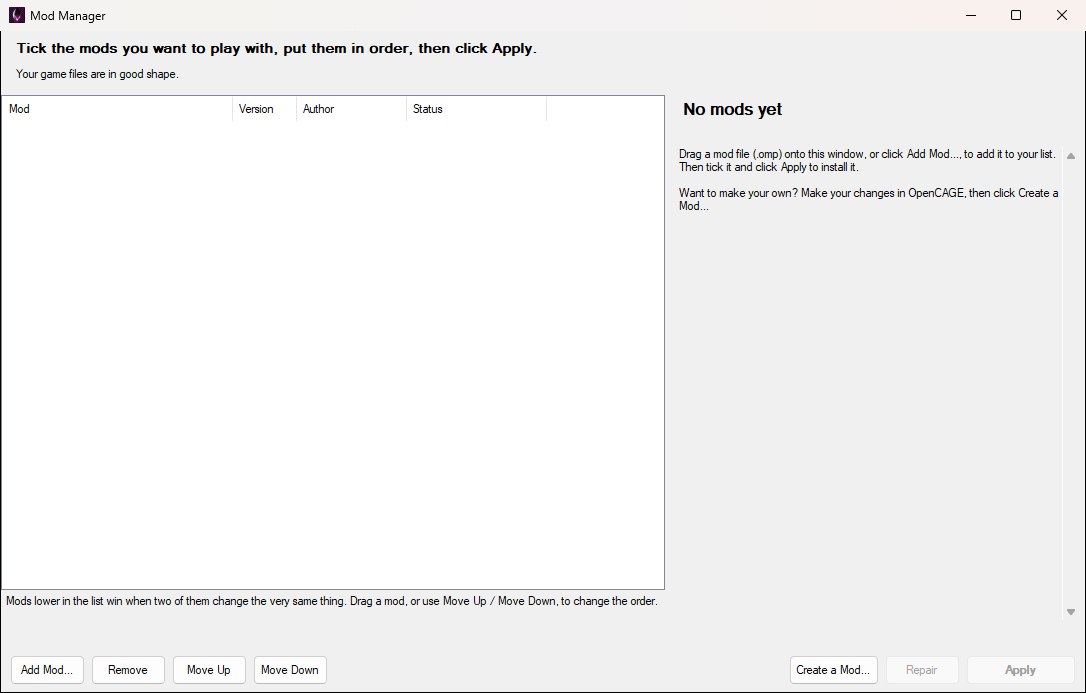
Each time it opens, the Mod Manager checks your game files. The first check reads every file, which takes a minute or so (longer if the game is on a hard drive); after that it only reads the files that have changed since, so it's quick. The line at the top tells you when it's done. With no mods added yet, it looks like this:
There are three ways to add a mod to your list. Use whichever is easiest:
Adding a mod doesn't change your game yet: it goes into your list unticked. The Mod Manager keeps its own copy, so you can delete the file you downloaded afterwards.
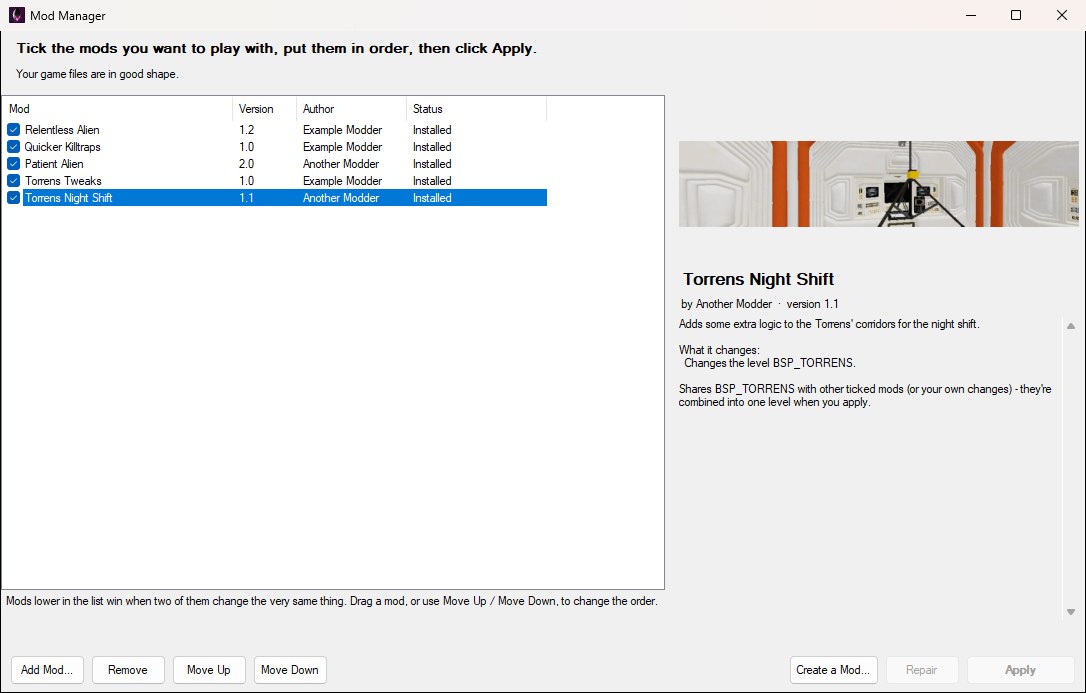
Click a mod in the list to see its picture, who made it, its description, and what it changes:
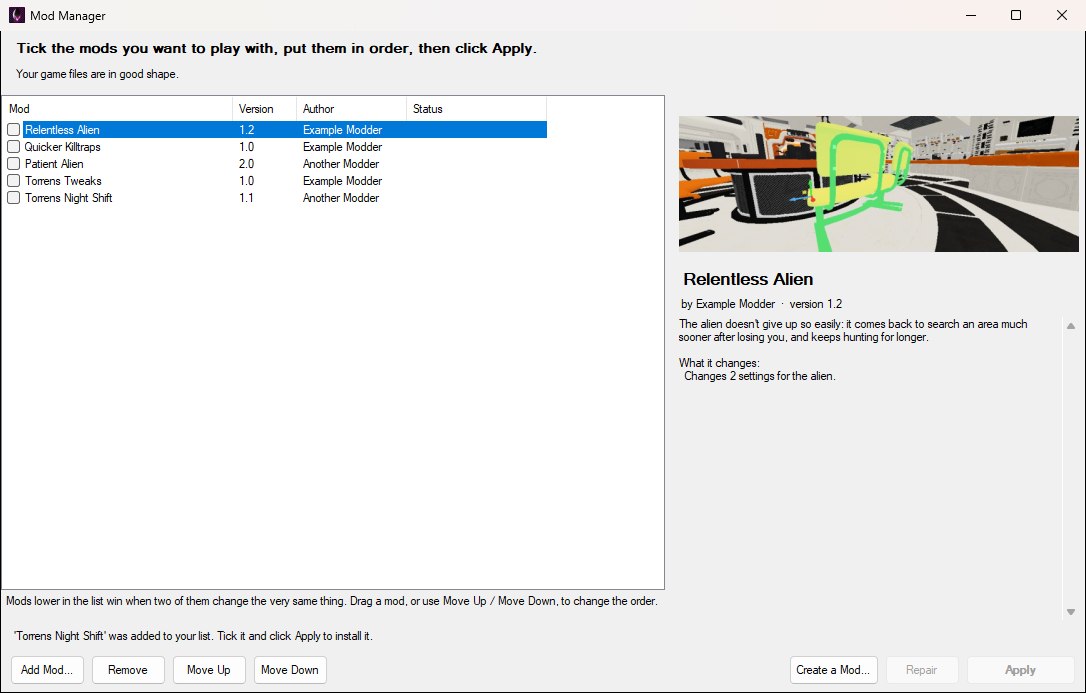
Tick the box beside each mod you want to play with. Its status changes to Will be installed - nothing happens to your game until you click Apply, so you can tick and untick as much as you like first.
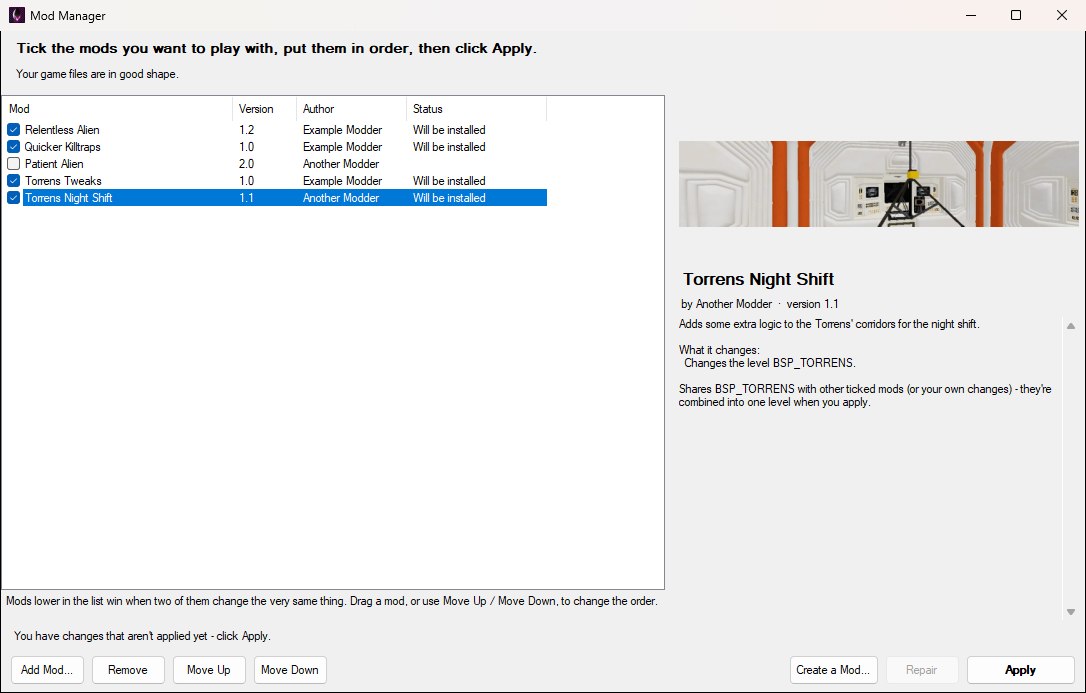
When you're ready, click Apply. If anything is worth knowing first, the Mod Manager tells you before it changes anything. For example, it lists any level that more than one of your mods changes - those are put back together with every mod's changes in them, which takes a minute or so each - and anything two of your mods both want to change:
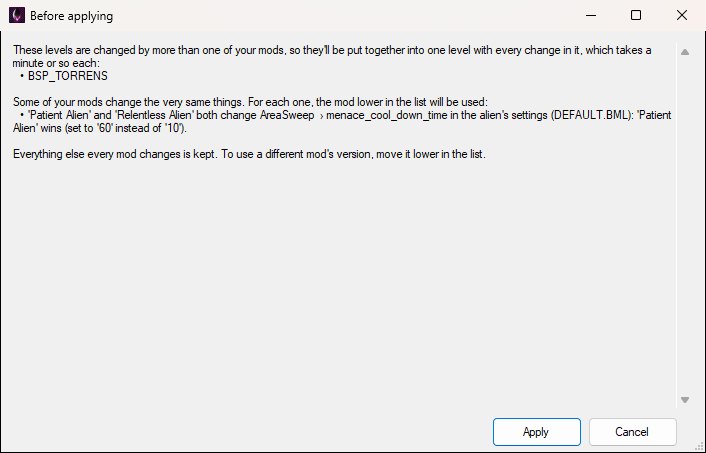
Click Apply to go ahead, or Cancel to change your mind. While the mods go in, a small window shows what's happening:
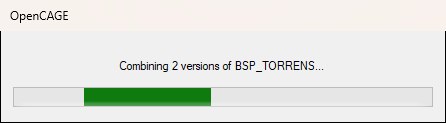
When it's done, you'll see a summary of what was combined and which version was used wherever two mods clashed:
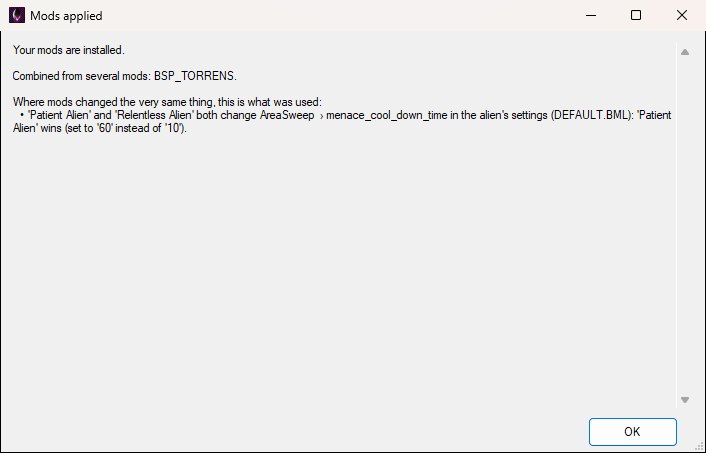
Your mods now show Installed. Start the game as you normally would and they'll be there.
If something goes wrong part-way - a file is in use, say - nothing is changed: the Mod Manager puts everything back as it was and tells you why it stopped.
The order of your list only matters when two mods change the very same thing - the same setting, the same line of text, or the same part of a level. When that happens, the mod lower in the list wins.
To change the order, drag a mod up or down the list, or select it and click Move Up or Move Down. The new order takes effect the next time you click Apply; until then, the Mod Manager reminds you it isn't applied yet.
Most mods work together without you having to do anything. The Mod Manager looks inside the files mods change and keeps every change from every mod - so two mods that change different settings in the same file both work, two mods that change different text both work, and two mods that change the same level are combined into one level with both mods' changes in it.
A clash only happens when two mods change exactly the same thing. Click a ticked mod to see whether it clashes with any of the others:
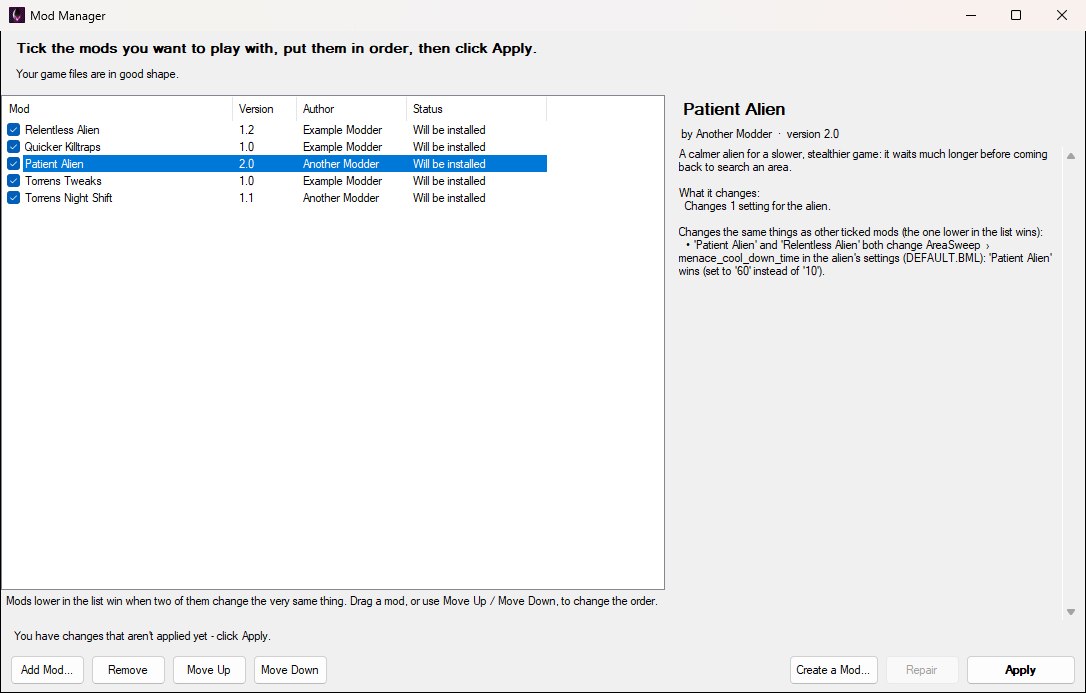
Everything else both mods change is still kept. If you'd rather have the other mod's version of the clashing setting, move that mod lower in the list and click Apply again.
Replacement mods. The Type column shows how each mod installs. Most are Combinable, and work together as above. A Replacement mod installs exactly as its author made it, with nothing rebuilt, so it can't share what it changes: if another ticked mod changes the same level or file, the mod's details say so, and Apply won't go ahead until you untick one of them. If you've changed those levels or files yourself, your changes are set aside while the replacement mod is on, and come back when you turn it off.
To take a mod out of your game, untick it. Its status changes to Will be removed; click Apply to remove it. Your other mods stay installed, exactly as if the one you removed had never been there.
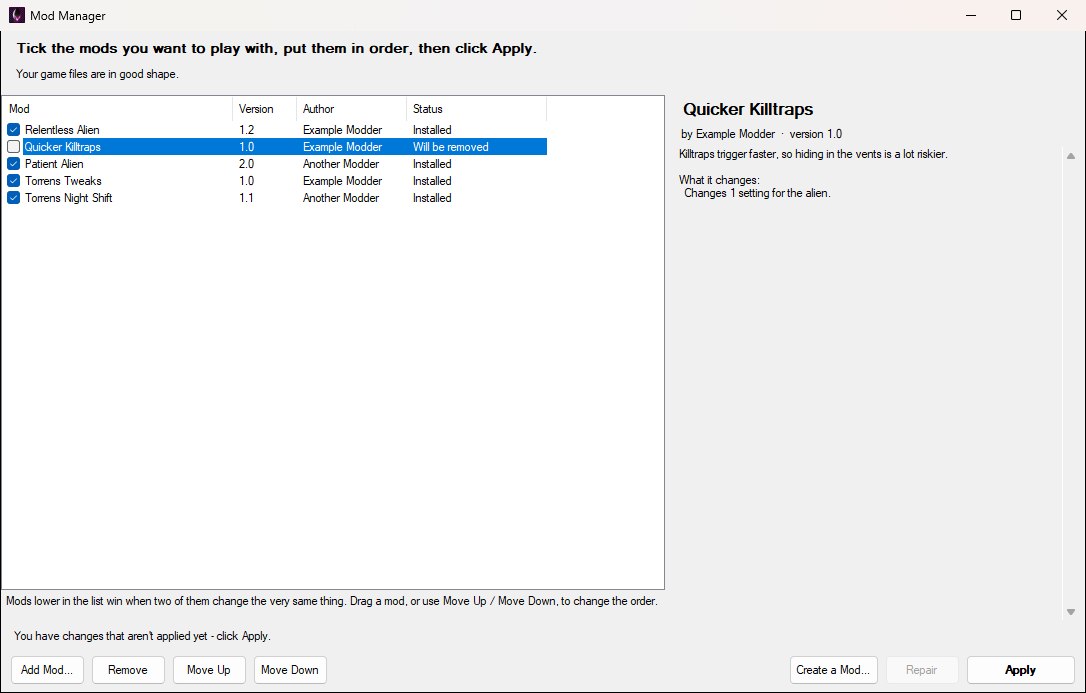
Untick every mod and click Apply to go back to the game you started with.
A mod you've turned off stays in your list, so you can turn it back on whenever you like. To take it off the list completely, select it and click Remove (you'll need the .omp file again to add it back). A mod has to be turned off before it can be removed.
Got a new version of a mod you already have? Add it the same way as before. It replaces the old version in your list, in the same place and still ticked if it was. If the old version was installed, click Apply to swap in the new one.
If you also change the game yourself with OpenCAGE - editing a level's scripts, say, or a setting - the Mod Manager looks after those changes too. Mods are combined with your changes rather than replacing them, and turning mods off gives you your changes back. The top of the Mod Manager tells you when you've changed files yourself:
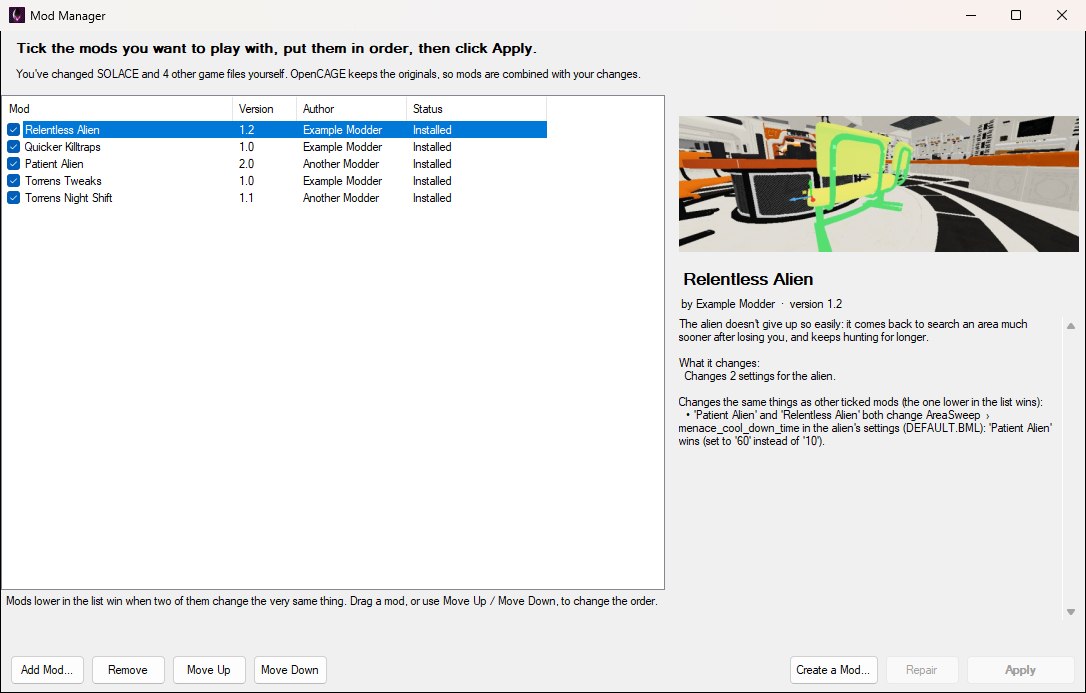
Where a mod changes the very same thing you did, the mod's version is used while it's installed. Turn the mod off and yours comes back.
What counts as a change is what's in each file, not when it was last written: a file that's back to exactly what the game shipped with - put back by Steam's file check, say - isn't a change, however recently it was written. Copies of the game's own files somewhere the game doesn't use them aren't changes either. That's what's left when you rename one of the game's folders (to try something without it, say) and your game store then puts the original back, or when you back a folder up inside the game folder. The Mod Manager says how many copies there are and where, on a line of its own, and leaves them out of your mods:

The game doesn't use those copies, so you can delete them if you don't need them. Hover over the line to see which files they are.
If you change something a mod installed - for example, you edit a level after installing a mod for it - and then click Apply, the Mod Manager won't just overwrite your work. It asks what you'd like to do:
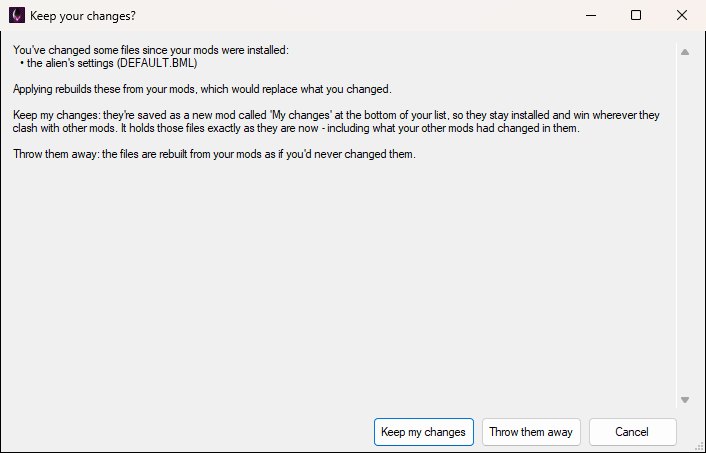
OpenCAGE keeps a copy of the original version of a game file before it first changes it, so it can always combine mods with your changes and put things back. Files changed before that - by an older version of OpenCAGE, or by a mod installed by hand - have no original copy. When that's the case, the top of the Mod Manager says so, with a Keep those changes safe... link:
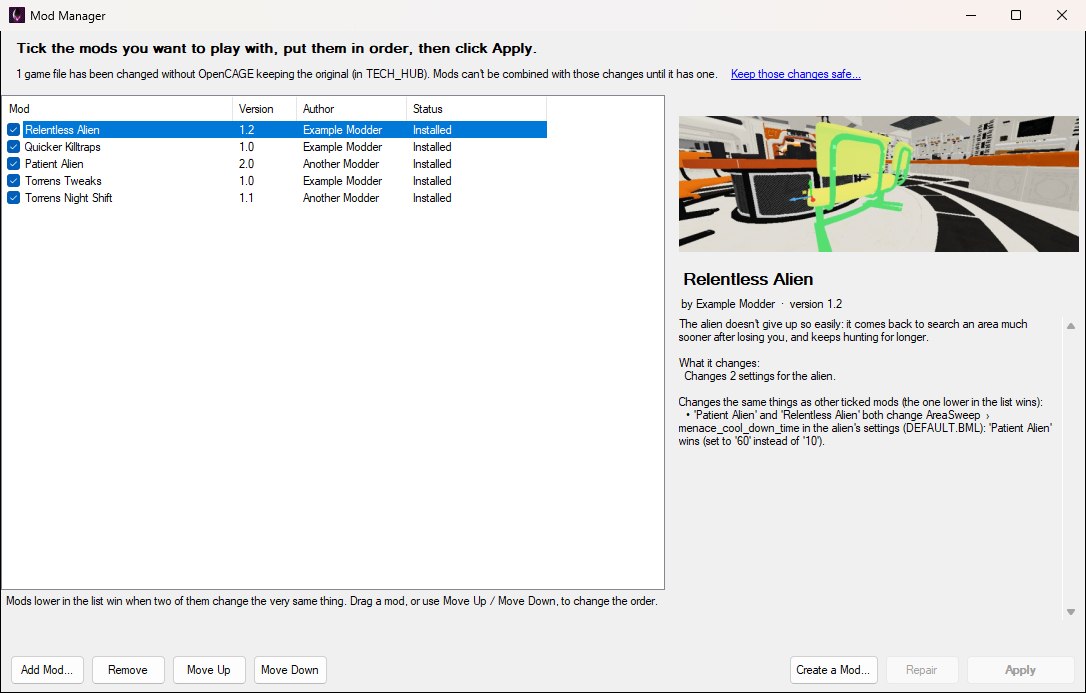
Click it to fix that in a few minutes. OpenCAGE copies your files, then asks you to have Steam, the Epic Games launcher or GOG Galaxy (whichever you got the game from) check the game's files, and tells you how. That puts the original versions back. OpenCAGE keeps copies of those originals, then puts your files straight back. Your game ends up exactly as it was, and nothing is lost.
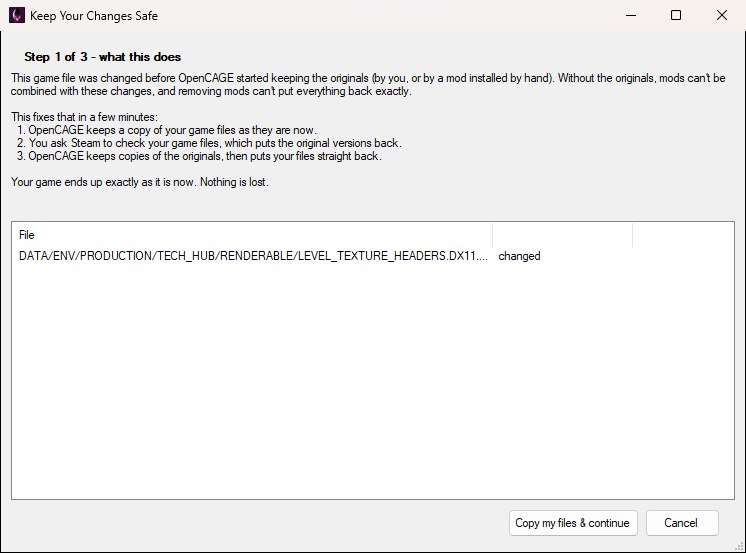
Until you do, a mod that changes the same level as those files can't be combined with them, and the Mod Manager will tell you that when you click Apply.
If those files aren't part of a level, clicking Apply asks whether to keep what's in them now as the version to go back to when mods are removed. Yes carries on, but turning your mods off then leaves those files as they are now, not as the original game had them. No stops, so you can use Keep those changes safe... first.
Steam, the Epic Games launcher or GOG Galaxy sometimes puts the game's original files back - after a game update, or when you ask it to check (verify) the game's files. If that happens to files your mods changed, those mods show Needs repair. Click Repair and the Mod Manager puts your mods back in.
You don't need to tell the Mod Manager this has happened. It remembers the size of every game file and when it was last changed, and anything that rewrites a file - your game store, another tool, or you - changes that. The next time it checks your game files, it reads those files again and sees what's in them now.
A few tools can change a file and then set its size and date back to what they were. If you think the Mod Manager has missed a change like that, click Check every file again at the end of the line at the top: it reads every game file once more, which takes as long as the first check did.
Can I use two mods that change the same level?
Yes. The level is rebuilt with both mods' changes in it. Where they both change the very same thing, the mod lower in your list is used, and the Mod Manager tells you.
Applying stopped with a message. Is my game broken?
No. If anything goes wrong while mods go in, the Mod Manager puts every file back the way it was before you clicked Apply, then tells you what went wrong. The most common reason is the game still running.
OpenCAGE closed (or my PC turned off) while mods were going in.
The next time you open the Mod Manager, it puts your game files back the way they were before that started. Then just click Apply again.
Do I need to restart OpenCAGE after applying mods?
No. Anything OpenCAGE has open that your mods changed - the level you're working on, the animations, the game's text - is loaded again once the mods are in, and you're taken back to where you were in the level. If you have changes you haven't saved in any of those, the Mod Manager asks first whether to save them. Windows showing files the mods change are closed; if one of them only saves when you click its Save button, you're asked to close it yourself first, so nothing in it is lost.
It says a mod was made for a different version of the game.
Mods are made for one version of the game. Mods made with the Steam, Epic Games Store or GOG version work on any of those three, but they can't be installed on other versions (such as the Microsoft Store or Nintendo Switch version), and those versions' mods can't be installed on Steam, Epic Games Store or GOG copies.
It says mods can't be used with this version of the game.
To put mods in and take them out again, the Mod Manager needs a record of what the game's own files should look like. OpenCAGE has that for the Steam, Epic Games Store, GOG, Microsoft Store and Nintendo Switch versions, but not yet for the mobile or Mac/Linux versions, so the Mod Manager can't be used with those.
Does removing a mod really undo everything it changed?
Yes. Every file is put back exactly as it was, byte for byte.
It says I've changed game files I never touched.
Check the line under it first: copies of the game's own files (a folder you renamed or backed up) are listed there, not counted as changes - see Your Own Changes. A file your game store put back as it shipped isn't a change either, whenever it was written. If a mod was installed while one of the game's folders was renamed, and you've put the folder back since, the Mod Manager notices the next time it checks your game files and keeps those files as the originals, so removing the mod won't take them away again.
Where does the Mod Manager keep my mods?
Inside your game folder, in DATA/MODTOOLS/MODS, along with the copies of original files it keeps. Don't change anything in there by hand.
Why does applying take longer for some mods?
A level that more than one of your mods changes (or that you've changed yourself as well) is put back together from all of them, which takes a minute or so per level - longer when one of those mods rebuilt the level's lighting and navigation, as the combined level then has to be rebuilt too. Everything else goes in within seconds. A level is only put back together when something about it has changed: turning other mods on or off leaves it alone.
