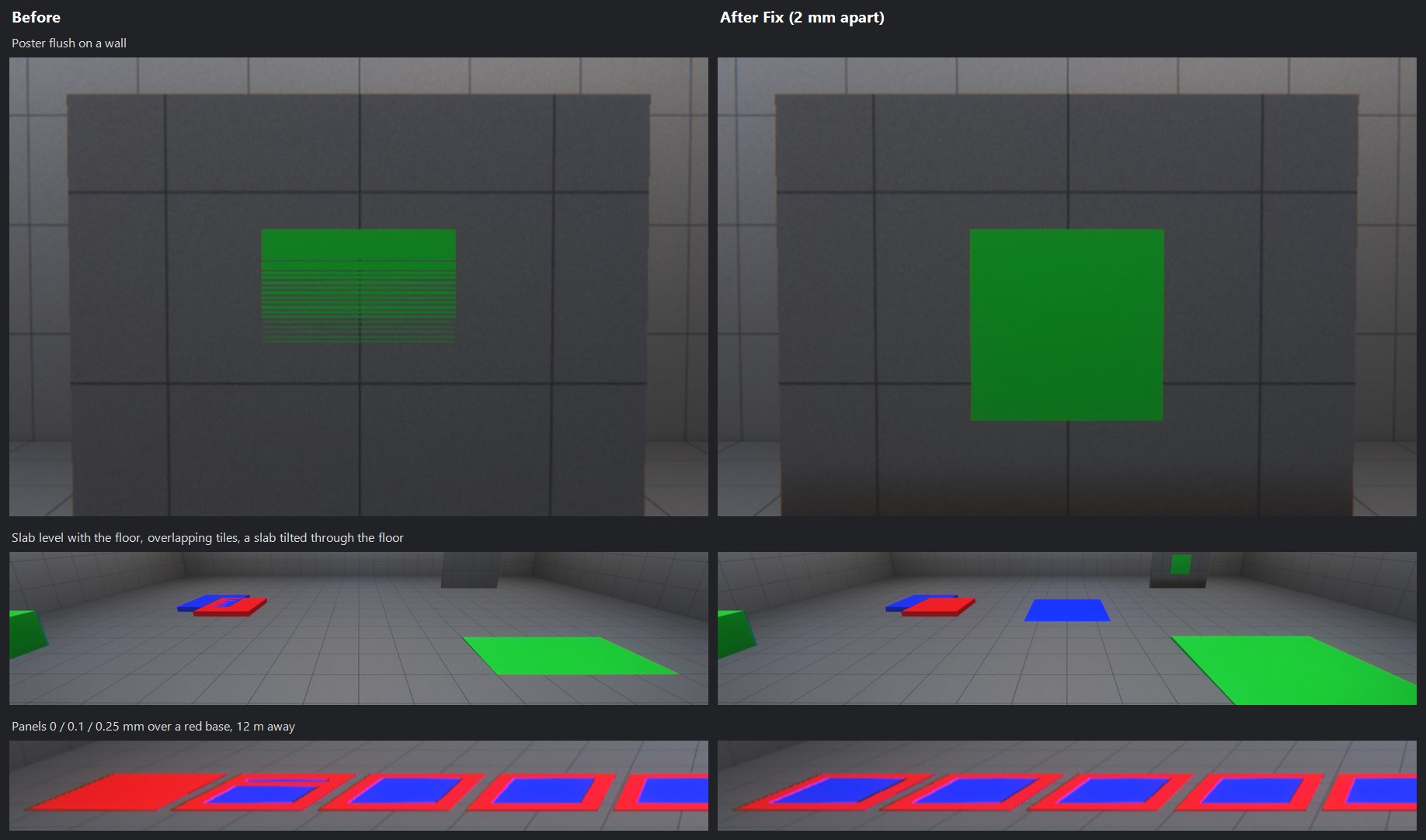
Two surfaces that face the same way and lie in (nearly) the same place are drawn at the same depth. The graphics card can't tell which is in front, so it picks one or the other from pixel to pixel, and the choice changes as the camera moves: the overlap flickers in stripes and speckles. This is called z-fighting. It happens when a poster is placed flat against a wall, a floor piece is laid at exactly the floor's height, two kit pieces overlap, a slab is tilted through the floor, or an imported model has a decal or a strip of ground modelled into the same plane as another mesh.
When the two are exactly level the game usually draws only the one it drew first, so the other one simply never shows - a sign laid on a floor at the floor's height is invisible. A few tenths of a millimetre apart, it stripes further away.
Level Tools → Find Z-Fighting... in the Model Editor finds these places among the models placed in your level, and right-click → Find Z-Fighting... in the Model Editor finds them inside one model. Each one is shown, and Fix separates the two by a couple of millimetres - nobody can see the move, and the flicker is gone.
Open the Model Editor (View → Model Editor), click Level Tools under the model list and choose Find Z-Fighting..., pick where to search and press Find:
The search reads the level as it is in the editor, unsaved changes included: every ModelReference's drawn meshes at its place in the world. Models hidden at the start (show_on_reset off - a script shows them later) are left out unless Models hidden at the start is ticked; skinned meshes (characters) are always left out. Pairs inside one placed model are included while Inside one model too is ticked. Searching a whole campaign level (about 12,000 meshes and 3 million triangles) takes 20 seconds.
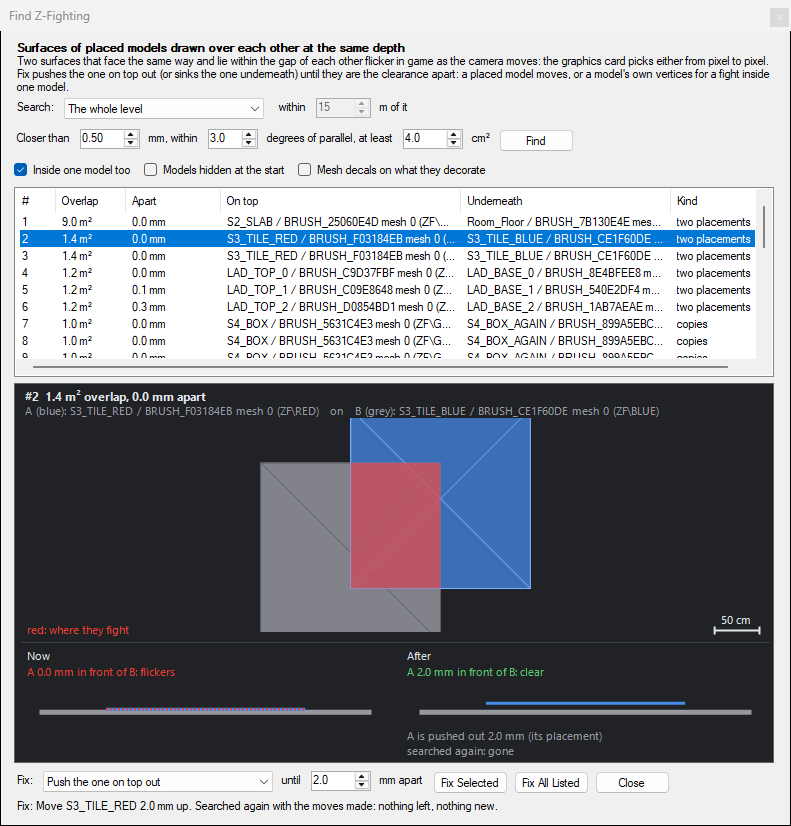
Closer than is how close two surfaces have to be to count (0.5 mm by default - see How Close Is Too Close), within ... degrees of parallel how far from parallel they may be (3 degrees), and at least ... cm² leaves out overlaps smaller than that.
In the Model Editor, right-click the model's tree and choose Find Z-Fighting.... This searches the model's own meshes against each other in the model's own space - what you want for a model you imported with decals, trim or ground modelled into it. A model's components are searched separately (they are not always drawn together).
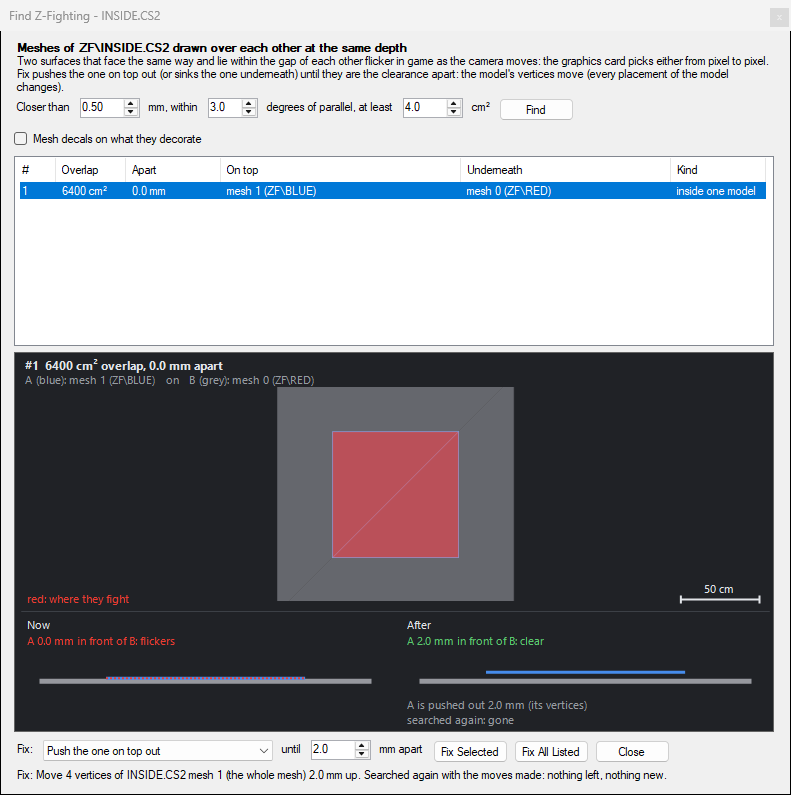
Each row is one pair of surfaces (and one way they face: a sticker wrapped round a corner is two rows). Overlap is the area that flickers, Apart how far the top one is in front of the other (negative is behind), On top the one lying on the other - a decal, a panel, the smaller one or the one more covered - and Kind:
Mesh decals - materials with the DECAL feature, in the 52-55 draw passes - are blended over whatever is behind them and never fight it; the game's own sit 0-3 mm off the surface they decorate. They are left out unless Mesh decals on what they decorate is ticked.
Select one or more rows and press Fix Selected, or Fix All Listed. Push the one on top out moves the top surface forwards, along the way the other faces, until it is the clearance (2 mm by default) in front of it everywhere they overlap. Sink the one underneath back moves the other one away instead - lowering a ground slab under a floor, say. A crossing is cleared at its deepest point, so the whole of the moved surface ends up on its side.
The fix is one step on the undo history: Edit → Undo takes it all back. Save with a build to see it in game.
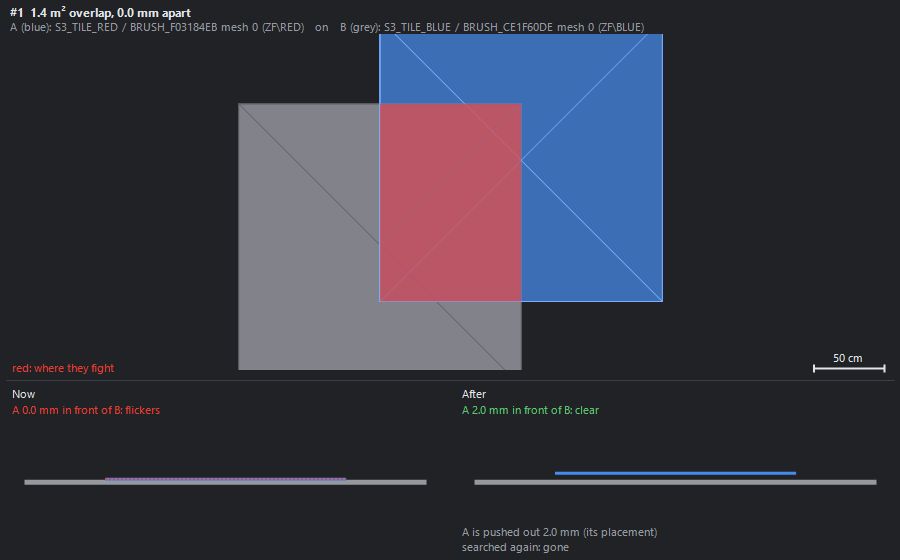
The picture shows the selected overlap straight on - the underneath surface grey, the one on top blue, where they fight red - and below it a cut through the two, now and after the fix. Before anything changes, the fix is checked by searching again with the moves made: the window says how much of the overlap would be left (nothing, normally) and whether a moved surface would land on something else, and Fix All Listed asks before making new overlaps.
Measured in game with a row of panels laid over each other at 0, 0.1, 0.25, 0.5, 1, 2, 4 and 8 mm and filmed from 3 to 28 m with the camera moving: exactly level, the top panel never showed near by and striped further away; 0.1 mm apart it lost a band of itself 12 m away; 0.25 mm and more drew clean in every view. So the search looks within 0.5 mm, and the fix leaves 2 mm - the game's own overlays sit about 0.8 mm off what they decorate. In a very large outdoor level seen from far away, search with a larger gap.
A different problem with a similar look: ground (terrain) that runs straight into a rock or wall meets it in a hard line. Z-fighting fixes leave that line where it is. A soft edge is a strip of the ground's colour along the join, fading out up the wall.
The game's own mesh decal materials can draw such a strip: copy a decal material of your level (one with the DECAL feature, draw pass 52) with the Material Editor or create_material, give it a diffuse texture whose alpha fades from opaque at the bottom to clear at the top, and place a thin strip model with it a millimetre or two off the wall, its bottom edge a little below the ground. The decal is blended over the wall and fades out with the texture's alpha. OpenCAGE does not build these strips for you yet.
find_z_fighting (toolset world) - search a region (region, as the other world tools take it; default the whole level) or one model's own meshes (model). gap_mm, max_angle, min_area_cm2, inside_models, include_hidden, decals; picture writes a PNG of a fight. Changes nothing.fix_z_fighting - fix fights by the ids find_z_fighting gave (or "all"): action auto / push / sink, clearance_mm, whole_mesh, in_composite, dry_run to plan and check only, picture. One undo step; it refuses if the level changed since the search.