Live Link connects OpenCAGE to Alien: Isolation while the game is running. With the game playing the level you have open, the script edits you make reach it moments later, without saving or reloading the level. You can also trigger an entity's methods (start, trigger, show...) in the game straight from the Entity Inspector or a method pin on the flowgraph, have the game's camera and the Viewport's follow each other, and watch your scripts run, as the flowgraph lights up each link the game uses and counts how often each output fires and each method is called. With the game's Debug Menu on as well, you can stop the scripts at a breakpoint on a node, see what led there, and step on from it.
Live Link is for script tweaks only. What reaches the running game is changes to a level's scripting: entities added or deleted, links made or broken, and parameters changed (moving an entity included). Nothing else is sent.
Changes to models, textures, materials or any other asset, new composites (created, ported or imported), and what Save and Build works out (navmesh, cover, baked lighting) never reach a level that's already running: the game only picks them up when you save the level and load it again. See What Needs a Reload.
It's also the quickest way to light and dress a level: place a light or a prop, move it and change it in OpenCAGE, and the game draws it within a second. See What You Can Do With It.
It makes for quick iteration on a script. Add a DebugTextStacking, give it some text and pick start from ▶ Trigger Method in the Entity Inspector, and the text is on screen in the game (with Debug entities ticked in Launch Game too, so the game draws it). Change the text and trigger start again, and the new text appears on a line under the old one: a DebugTextStacking adds a line each time it starts, and an edit doesn't clear the ones already there (call its clear_all method to empty the stack, or clear_last to remove the newest line).
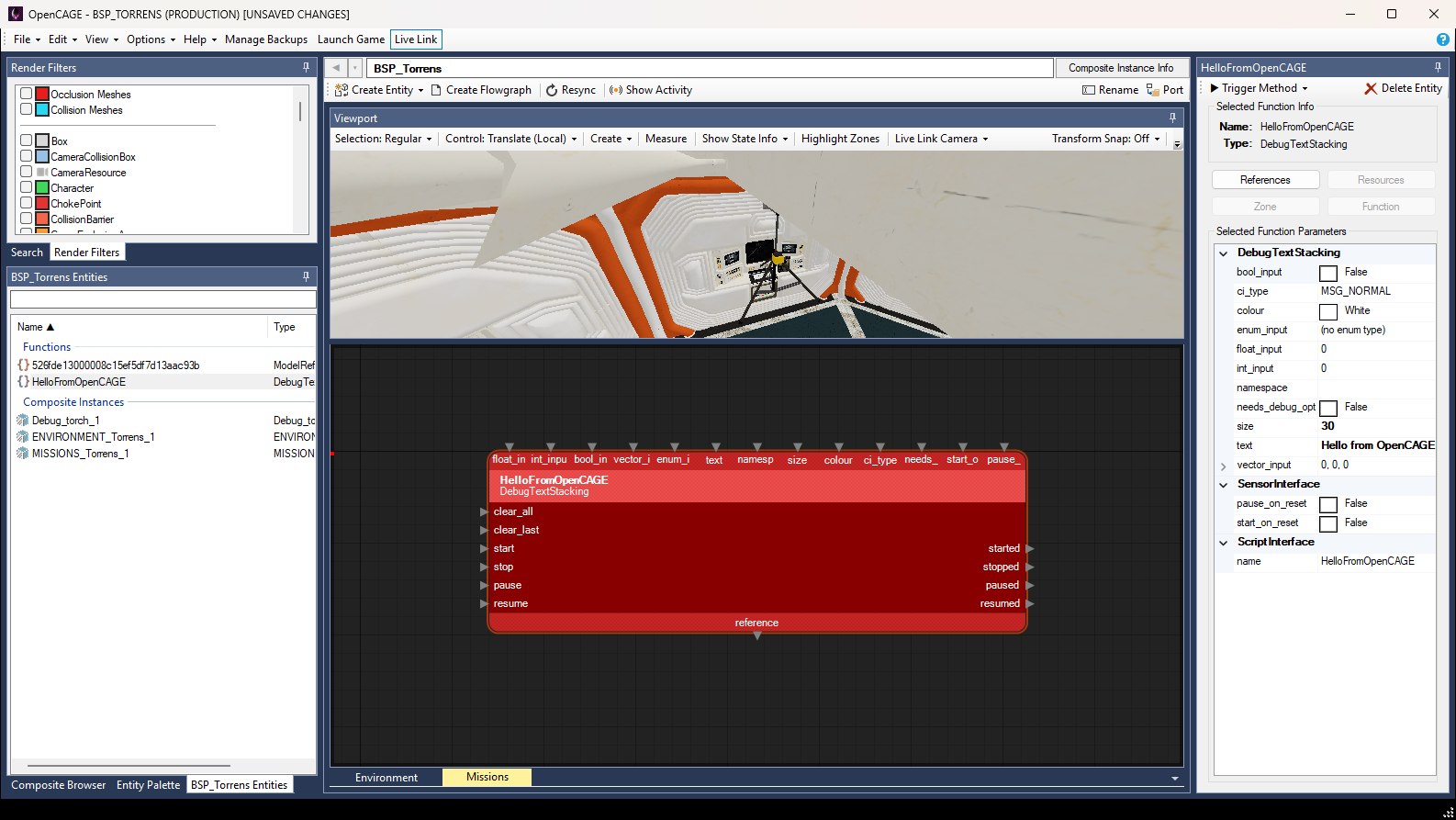
OpenCAGE connected to the game: Live Link is pressed on the main toolbar, Resync sits on the composite toolbar, Live Link Camera on the Viewport toolbar, and the Entity Inspector offers ▶ Trigger Method for the selected DebugTextStacking.
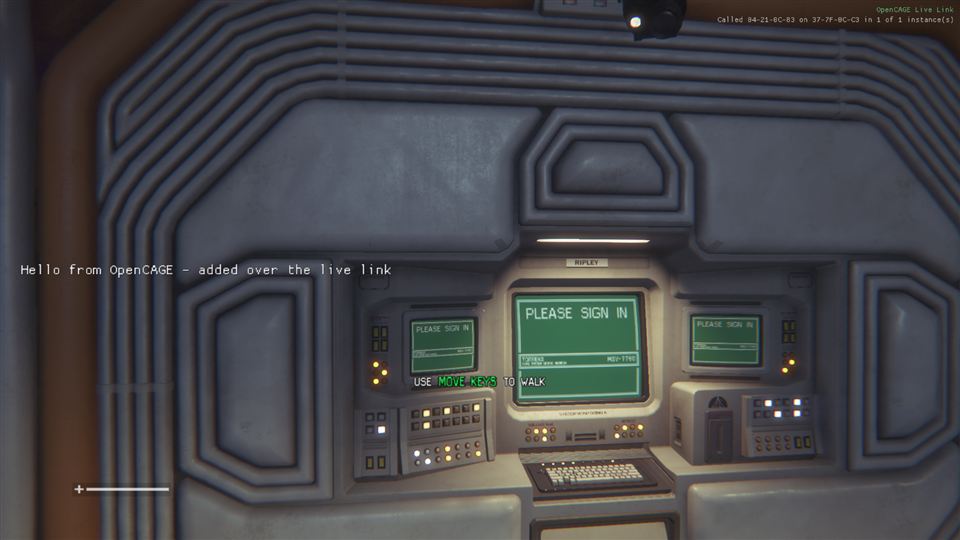
The same DebugTextStacking in the game, added and started over Live Link. In the top-right corner, OpenCAGE Live Link shows the game is connected, with the last thing done underneath.
A few of the things Live Link is good for, each with a link to the details further down. All of it happens in the running game without saving the level, so save when you want to keep your work (see Editing While the Game Runs).
You can put a whole new piece of script together while the game runs: add the entities, link them up, trigger start (or link something to start it), watch what it does, then change it and go again. Every entity and link you add reaches the game a moment later. A test script of a TriggerLooper ticking a LogicCounter, DebugTexts showing the count, a DebugTextStacking logging each tick and a couple of markers was built this way in the root of a running level, and was running within seconds, without a save.
To try it, open the level's root composite (the orange globe in the Composite Browser), add entities with a right-click on the flowgraph and Create Entity → New Function, and drag from one pin to another to link them, as in Creating a Script. Debug Text & Markers builds that counter script step by step, with a picture of it running in the game.
The main limit is a brand-new composite. The running level doesn't have it, so the game turns it away with Composite XXXXXXXX is not in the running level - save and reload the level to add new composites. Build in a composite the level already has (its root, say), and save and reload once you move the script into a composite of its own. See What Needs a Reload.
In a script that's already there, change a value, a delay or some text in the Entity Inspector, or make or break a link on the flowgraph, and the game has it a moment later, with no save and no reload (see What Reaches the Game).
Each entity whose parameters you change is re-initialised, and so is one whose value comes through a data link you make or break, since the value it reads has changed (making or breaking a logic link doesn't re-initialise anything). If it was running, it stops. Start it again, or trigger the method that sets the logic off (trigger, start...) with the inspector's ▶ Trigger Method or a right-click on its pin. That way you can run the same bit of script again and again as you tune it, without playing back to the point where it would fire.
This is where Live Link saves the most time. Place a light, move it, and change its colour and brightness in OpenCAGE, and the game lights the level with it within a second. You tune it by eye in the game's own render, rather than saving and reloading after every tweak.
AYZ\Science\Lighting\Small_Floor_Light), or drag a LightReference from the Entity Palette onto the Viewport. Either is created where you drop it (see Creating Entities), and appears in the game straight away.lgt_col for the colour and lgt_spot_IntMult, lgt_omni_IntMult and lgt_emissive_IntMult for the intensities. On a LightReference they're its own colour and intensity_multiplier: a new one starts white at an intensity of 1, so give it a colour and raise its intensity_multiplier and end_attenuation until it clearly lights the space (8 and 3 for the one further down).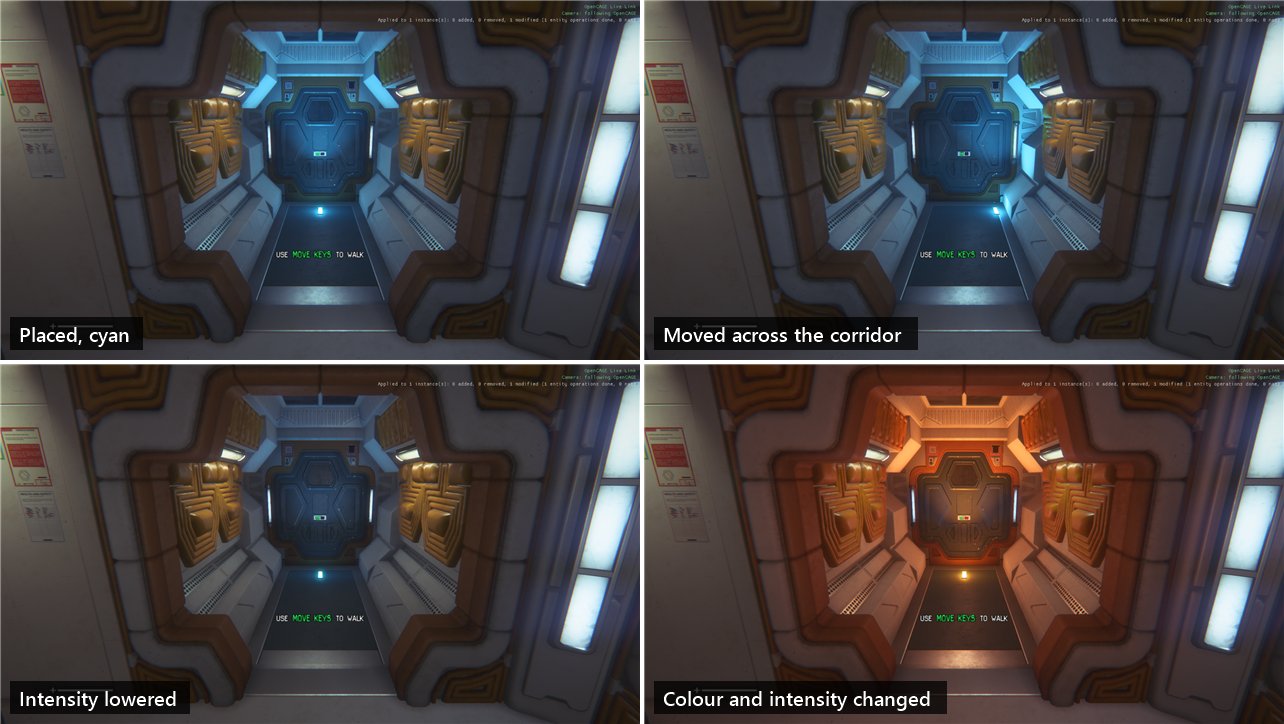
A Small_Floor_Light prefab dropped on a corridor floor, as the game drew it from the Viewport's camera: placed and coloured cyan, moved across the corridor, moved back and dimmed, then given a new colour and intensity. Each change showed in the game within a second.
Because you're looking at the game's render, you see exactly where the light has ended up. Move it too far and you'll see it go behind a door.
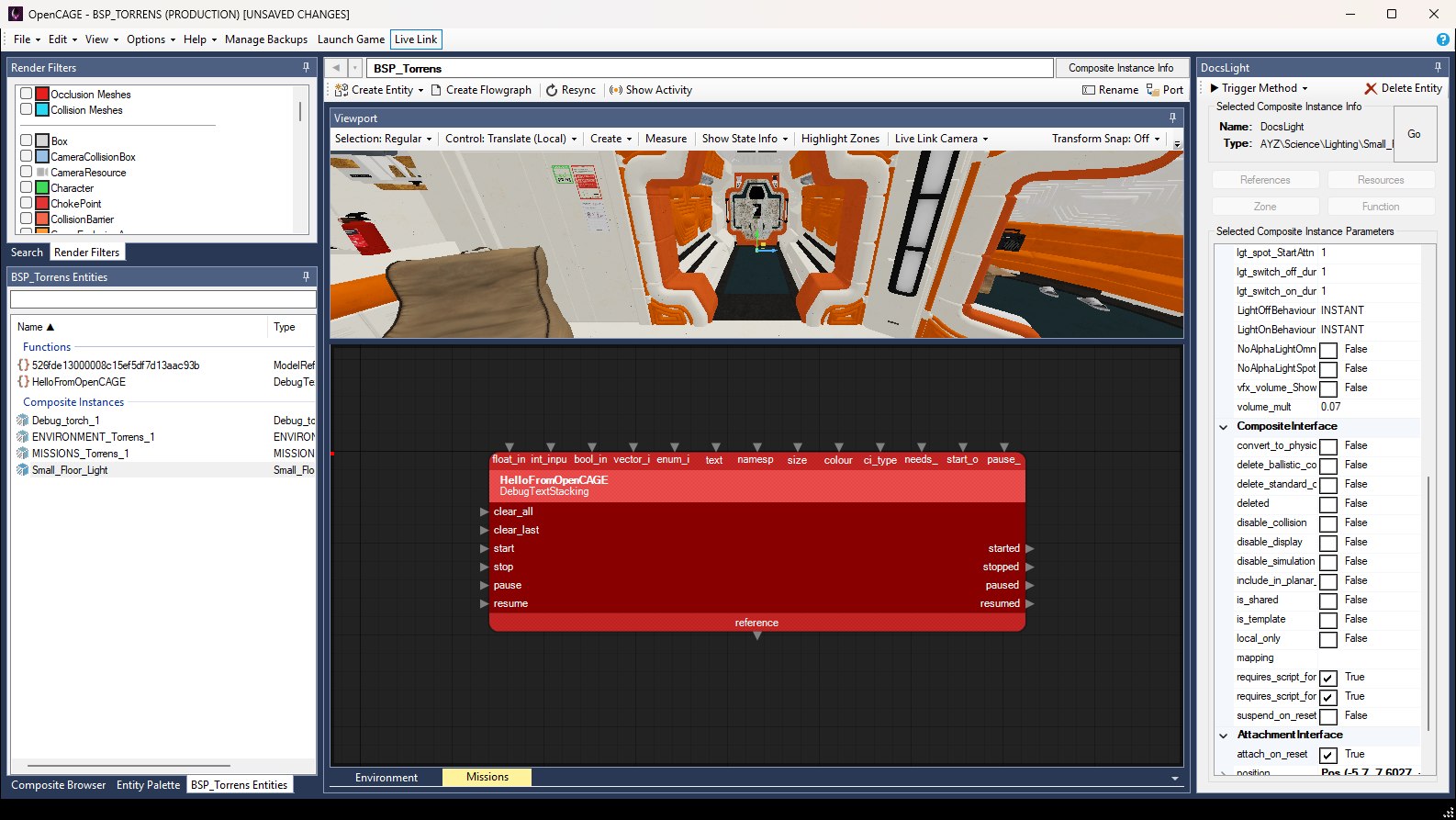
The floor light's instance (named DocsLight in the inspector) selected, with Live Link pressed on the main toolbar. Some of its lgt_ parameters are in view in the Entity Inspector, with the rest of the instance's parameters; scroll up the list for lgt_col and the intensities.
New lights work too. A plain LightReference added to the level's root, with a colour, an intensity_multiplier of 8, an end_attenuation of 3 and light_on_reset ticked, lit the corridor as soon as it was added. Moving it and changing its intensity showed at once, and deleting it took the light away. Adding a LightReference also brings up Its resource references changed (models, collision and the like): those need the level saved and reloaded, on the status bar and in the game's overlay. For a new light that note is expected: the light works anyway.
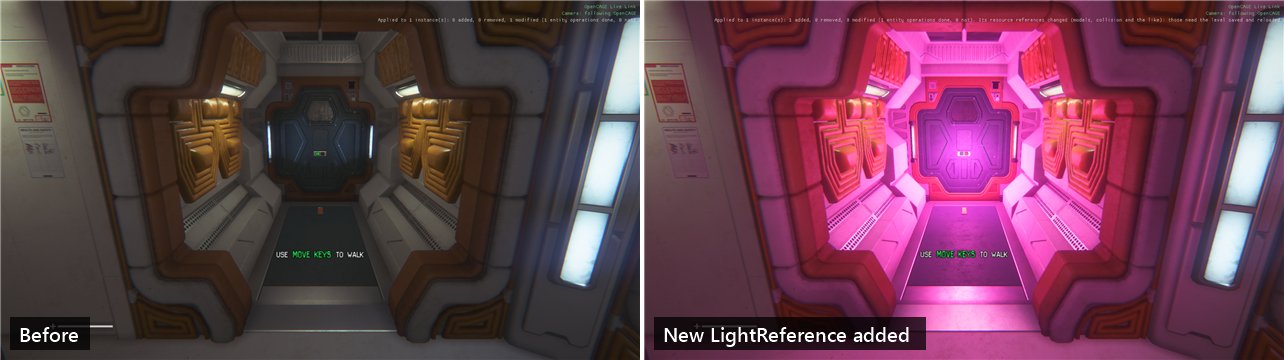
Before, and after adding a plain LightReference: the corridor is flooded magenta the moment it's added. The resource note at the end of the overlay's line is the expected one.
Lights the level already has change the same way: recolour them, or switch them on and off by triggering light_switch_on and light_switch_off (see Triggering Methods), whether their composite is used once or many times.
Baked lighting isn't recalculated. Live Link changes the lights themselves: the light they cast directly. The light that bounces around the level (its radiosity) is baked by Save and Build, so Live Link leaves it as the last build left it. See How Radiosity is Handled for what a build redoes.
Instances of composites the level already has are built by the game as you place them: props, light prefabs, NPC spawns, whole prefab walls. Drag one from the Composite Browser onto the Viewport, move it, turn it or delete it, and the game does the same, so with Live Link Camera following the Viewport you can dress a room while looking at it in the game. The level's own geometry can be moved too. Move the floor the player is standing on, though, and they drop through it for a moment while its collision is rebuilt.

Before (from further back), then a supply crate (an instance of AYZ\_Props_\Static\Generic\Container_Shells) placed in the corridor, then moved and turned, each step drawn by the game straight away.
A model placed on its own, as a new ModelReference entity rather than inside an instance of a composite, isn't built by the running game: the status bar says it's not built, as a level load would not build them. Plain static models come from what Save and Build bakes, so it appears once you use File → Save and Build Level and load the level again. The same goes for new models, imports and material edits, and the navmesh, cover and baked lighting stay as the last build left them too: see What Needs a Reload.
To see a model in the game straight away, place an instance of a composite the level already has that contains it, rather than the bare model. Props such as AYZ\_Props_\Static\Generic\Container_Shells are composites, so find the prop in the Composite Browser and drag it onto the Viewport (see Creating Entities). A model of your own that no composite in the level uses yet still needs Save and Build.
With Debug entities ticked under Debug tools in Launch Game, the game draws the debug entities, so it can show you what your script is doing: a DebugText shows its text and the values linked to it, updating as they change; DebugTextStackings keep a log of the last five lines, in one block on the left of the screen; a DebugPositionMarker draws axes at a position; and a DebugEnvironmentMarker labels a spot, or an entity it follows. Add them, link them and trigger their start over Live Link like anything else.
Debug Text & Markers covers them all, including how to see a script's values and keeping a log. If a DebugTextStacking's log repeats or skips values, start it from the link that fires once the value has changed (a LogicCounter's on_Up, say) rather than from the same trigger that changes it (two links fired by one trigger run in no fixed order), and link its input straight to the counter's reference.
To see which links a script follows, rather than the values it works with, switch on Show Activity and watch the flowgraph light up as the game runs it.
To stop a script at a node and look around, use the script debugger: the game stops just before the node's entity is called, and Show Live States Above Nodes shows each node's state, and the values its data pins read, where it stopped.
The game only accepts Live Link connections from the same PC.
Starting the game this way installs OpenCAGE's runtime utils in the game folder with Live Link switched on, and switches the Live Link button on, so OpenCAGE connects by itself a few seconds after the game starts. The status bar at the bottom of the OpenCAGE window says Live Link: connected to the game when it has.
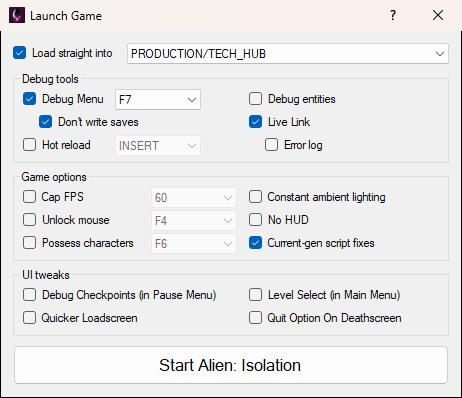
Live Link is in the right-hand column of the Debug tools group, under Debug entities. Debug Menu, for the script debugger, is at the top of the left-hand column, with Don't write saves under it.
The game loads the level from disk, so edits you haven't saved won't be in it. If the open level has unsaved changes when you press Start Alien: Isolation, OpenCAGE asks whether to save first:
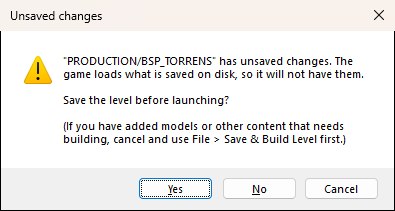
If you've added models or other content that needs building, press Cancel and use File → Save and Build Level first (see Save and Build). The question comes up whenever you start the game with unsaved changes, with or without Live Link.
While this install's game is running and serving Live Link (started with Live Link ticked, as under Requirements), a Live Link button appears on the main toolbar, to the right of Launch Game, and it stays there while OpenCAGE is connected. It shows pressed while Live Link is on, whether it's connected or still waiting for the game, and clicking it switches it off (disconnecting from the game) or back on. Hover over it to see where it stands: connected, or waiting for the game.

The button remembers its setting. Left on, OpenCAGE connects whenever you start the game with Live Link, and reconnects by itself if the game restarts. There's no button for a game started without Live Link, which has nothing to connect to, or for a game from another of your game installs: close it and start this install's game from Launch Game with Live Link ticked.
In the game, OpenCAGE Live Link shows in green in the top-right corner while it's connected, with a line under it for a few seconds about the last thing done: an edit applied, a method called, a Debug Menu command run, or something waiting. You can see it in the screenshot above. To keep the label off the screen, tick Options > Misc > Hide Live Link Label In-Game: a connected game hides it straight away, and the line about the last thing done then shows in its place.
While Live Link is connected, your script edits go to the game automatically: there's nothing to press, and no option to hold them back. A moment after you stop editing (about a third of a second, so a drag or a run of undos goes as one), OpenCAGE sends the whole composite you changed, and the game brings every running instance of it in line with the editor, without a reload. The status bar says what the game did with it: how many running instances it applied to, and how many entities were added, removed or changed.
Sending an edit to the game doesn't save it. The level on disk is unchanged, and the edit is still an unsaved change in OpenCAGE. The game only holds it in memory, so it's gone once the game closes or loads the level again (with the hot reload key, a level change, or starting the game again). To keep your work, save the level when you're done: File → Save Level, which closes the game.
Only script edits are sent: these, and nothing else. Anything that isn't on this list (an asset change, a new composite) needs the level saved and reloaded, as listed under What Needs a Reload.
Every entity whose parameters you change (moving it included) is re-initialised: put back in the state it starts the level in, then left to react to the edit, as though the level had just started. So something that was running when you edited it (a Thinker, a looping effect, text a DebugText put on screen, the axes a DebugPositionMarker draws) stops, and needs starting again unless it has start_on_reset set. Triggering its start from the inspector or the flowgraph is the quickest way to do that. A new entity starts the same way: if it doesn't start by itself, it waits for a link or a call to start it.
An instance of a composite is re-initialised along with everything inside it. Moving one, changing its parameters, or changing the default of one of its composite's variables (which re-initialises every instance of that composite) starts all of its logic over. That's usually what you want, but take care with an instance that runs a mission. Starting it over does whatever the mission does when it starts, and that can include sending the player to another level.
Live Link only carries script edits, so everything else you change in OpenCAGE stays out of the running game, however long you wait: no error, the game just never sees it. For these, save the level and load it in the game again:
Saving closes the game, as it always has, so save once you're ready to restart it: File → Save Level, or File → Save and Build Level when there's content to build, then start the game again from Launch Game. With Options → Misc → Open Game On Save ticked, saving starts the game again in the level for you, and OpenCAGE reconnects once it's up.
The game must be running the level you have open in OpenCAGE. Edits and method calls for any other level are turned away with The game is running a different level, rather than landing in the wrong place.
Unsaved edits you made before Live Link connected aren't in the game, which loaded the level from disk. They reach it the next time you edit that composite (the whole composite is sent), or when you Resync it.
The game only takes edits and method calls while the level is being played. While it's still starting (loading, the intro and the opening cutscene), while the pause menu is open, while a cutscene or a message on screen (a DisplayMessage waiting for the player to close it, say) has paused the level's scripts, or after a death while it restarts from a checkpoint, they wait, and the overlay in the game says Waiting for the game and why. Once the level has been playing for 5 seconds, they're carried out in the order you made them.
They wait too while the script debugger holds the level's scripts at a breakpoint, and while the Pause button on the Debug Menu's Game > Tools tab holds the game. Once the scripts go on again, they're carried out straight away, without the 5 seconds.
If they've waited 20 seconds and the level still isn't being played, the game turns them away. OpenCAGE sends its edits again by itself a few seconds later, so they get there in the end. A method call isn't repeated, so call it again once the game is playing.
When the game isn't playing a level at all, between levels or while it unloads one, edits and calls aren't held. They're turned away at once with No level is running or The game is unloading the level (or The game is running a different level at the game's main menu, which is a level of its own), and OpenCAGE doesn't send them again. The level the game loads next comes from disk, so once it's being played, Resync each composite you changed meanwhile.
While connected, a Resync button, with a refresh icon, sits on the composite toolbar at the top of the composite panel (with Create Entity and Create Flowgraph, above the Viewport), after Create Flowgraph and a divider. It sends the composite you have open to the game again, so every running instance of it matches the editor.

Edits are already sent as you make them, so Resync is only needed when the game has fallen out of step with the editor:
Resync sends only the composite you have open, so do it in each composite you've changed. If the game turns it away (because it's running another level, say), a message says why.
While connected, you can trigger any of an entity's methods in the running game, from two places:

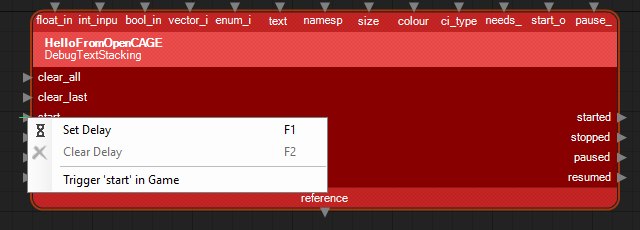
Both send the same call. It's carried out in the game on its next frame, just as if a link had fired into that pin. It goes to the instance you reached by stepping down from the level's root composite (the path at the top of the composite panel). If you opened the composite on its own from the Composite Browser, it goes to every running instance of it.
A call waits for the edits you made just before it to reach the game first, so you can add an entity and trigger its start straight away. The status bar says Live Link: calling "start" on entity... while it waits, then Live Link: called "start" on entity (ending (every instance) when it went to every instance) or Live Link: could not call "start" on entity - and the reason. One call goes at a time: trigger another before the game has taken the last one, and the status bar says Live Link: still waiting for the game to take the last call. The drop-down doesn't appear when several entities are selected, or for an entity with no methods (a composite's parameter entities, say), and neither appears while Live Link isn't connected.
If a call fails, the status bar says why:
While connected, the composite toolbar has a Show Activity button, with a live indicator icon, after Resync and another divider. Press it, and the flowgraph shows what the running game is doing with the composite you have open: each link lights up the moment the game uses it, orange for a logic link and blue for a data link, glowing with dashes running along it the way it went, then fades to a dim shade of its colour that stays until you clear it. Beside the pins, counts show how many times each output has fired and each method has been called. You can watch a script run as you play, see which way it went and how often, and find the links that never fire.
![The OpenCAGE window with Show Activity pressed and Clear Activity beside it on the composite toolbar, showing CCTV_Camera_Passive, reached through BSP_Torrens, ENVIRONMENT_Torrens and Torrens in the path at the top. The trigger links from a Thinker to a VectorDistance, from a VariableFloat to a FloatGreaterThan and on to two LogicOnces glow orange with light dashes. The data links between two VariablePositions, the PointTrackers that write them, two GetRotations, the VectorDistance, the VariableFloat and the FloatGreaterThan glow bright blue. Counts in brackets sit beside the pins, such as on_think [5297] on the Thinker and [5297] trigger on the VectorDistance.](img/activity.jpg)
CCTV_Camera_Passive, reached from the level's root through ENVIRONMENT_Torrens and Torrens, with Show Activity pressed and Clear Activity beside it. Its Thinker triggers the VectorDistance many times a second, the VectorDistance reads its two inputs from the GetRotations and writes its result into the VariableFloat, and the PointTrackers at the top write into the VariablePositions every frame, so the whole page keeps glowing. The numbers in brackets are the counts so far.
Opening another composite, or stepping into another instance, starts afresh. Each of the composite's flowgraph pages lights its own links, and a page you switch to catches up straight away. If Live Link disconnects, what was lit and counted stays on the flowgraph, with Show Activity and Clear Activity on the toolbar, until you clear it or switch Show Activity off.
Keeping track costs the game very little, and next to nothing while Show Activity is off.
Result into a VariableInt's reference, or a PointTracker writing its result. The dashes run the way the value went the last time: into the entity reading it, or from the one writing it into where it's written. When that happens depends on the entity: a TriggerSelect reads its index and a SetInteger writes its Result each time they're triggered, while PointTrackers read and write every frame. Some entities also light a data link when they only look up what's linked to it, such as a list of objects they've been given.A link that's lit but no longer glowing, a dim orange or blue, has been used since you last cleared, though not in the last second and a half. One that keeps its usual colour hasn't been used, so after playing through part of the level, those are the parts of the script that never ran (apart from the cases under Limits).
![Part of CCTV_Camera_Passive's flowgraph twice. Top, labelled Just used: the trigger link from the Thinker's on_think [5609] to the VectorDistance's [5609] trigger glows orange with light dashes, and the data links from two GetRotations into the VectorDistance, and from its Result to a VariableFloat, glow bright blue with light dashes. Bottom, labelled After the glow has faded: the same links in plain dim orange and blue, their counts muted at [5947], and [1] beside the Thinker's stop.](img/activity-fade.jpg)
Top: links the game had just used, with the dashes running the way each one went: down from the GetRotations into the VectorDistance's LHS and RHS as it reads them, and up from its Result into the VariableFloat as it writes its result there. Bottom: the same links a few seconds after the Thinker was stopped with Trigger Method. They stay dimly lit, and the counts stay where they stopped, until you press Clear Activity. The Thinker's stop shows [1] for that call.
While Show Activity is on, each pin the game uses gets a count in brackets, in bold beside its name:
A count is bright while the pin is in use, and muted once it hasn't been used for a second and a half, like the links. Counts over 9999 are shortened, to [10k], [1.2M] and so on. A composite parameter's node shows its count on whichever side its pin is drawn. If a label no longer fits beside its count, the label is cut short, never the count. The counts start again from nothing when you press Clear Activity, switch Show Activity off and on, open another composite or step into another instance.
They show how often each part of a script ran: how many times a loop went round, which way a choice went and how often, or whether something meant to happen once happened twice. Each time an output fires, the methods linked to it are called, so in the pictures above the Thinker's on_think and the VectorDistance trigger it's linked to show the same number.
A composite can be used in many places in a level. Like a method call, Show Activity follows the instance you reached by stepping down from the level's root composite (the path at the top of the composite panel), so you see what that one does: in the pictures above, the one camera reached through ENVIRONMENT_Torrens and Torrens. If you opened the composite on its own from the Composite Browser, it shows every running instance of it at once: a link lights when any of them uses it, including links that only some of them use, and the counts are theirs added together.
Result linked to an output parameter, say), the game never reports it, so that link stays unlit. Reading a parameter, firing out through one, and writing into an instance's parameter from the composite that holds it all light as usual.OpenCAGE can stop the running game's scripts at a breakpoint. Put one on a node of the flowgraph, and the moment the game is about to call one of that entity's methods (its start, its trigger or any other), it holds the call back and stops: the level's scripts and the game's clock stop where they are, and OpenCAGE opens the composite at the instance that stopped, with the node in view and outlined. You can see which calls led there, step the scripts on a round of calls at a time, or let them carry on.
It works over Live Link, with the game started with Debug Menu ticked in Launch Game as well as Live Link. The breakpoints are kept by the Debug Menu in the game, but you don't need to open its window. Without the Debug Menu, the breakpoints you set stay in OpenCAGE, drawn as rings, and go into the game the next time it's started with it.
![The OpenCAGE window with the game's scripts held at a breakpoint in CCTV_Camera_Passive, reached through BSP_Torrens, ENVIRONMENT_Torrens and Torrens in the path at the top. The VectorDistance node has a red dot on its top-left corner and a yellow outline, with a yellow arrow pointing at its title. The composite toolbar shows Show Activity, then the Script Debugger (1) menu and the Continue and Step buttons, each with its icon, and an orange label reading Held: 'trigger' on VectorDistance_1 [89-5E-85-13] in Archetypes\Gameplay\CCTV_Camera_Passive. The status bar says Live Link: scripts held at a breakpoint - 'trigger' on VectorDistance_1 [89-5E-85-13] in Archetypes\Gameplay\CCTV_Camera_Passive (Continue: F8, Step: F10 on a flowgraph).](img/w2-debugger-held.jpg)
Held at a breakpoint on a CCTV camera's VectorDistance, which its Thinker triggers every frame. The node is outlined, and Continue, Step and where the scripts are held sit on the composite toolbar.
Right-click a node and choose Set Breakpoint, the last item on its menu, or hover over the node and press F9. With no node under the mouse, F9 sets one on each selected node (up to 16 at a time). A red dot appears on the node's top-left corner. Do the same again to take it away: on a node with a breakpoint, the menu item reads Remove Breakpoint.
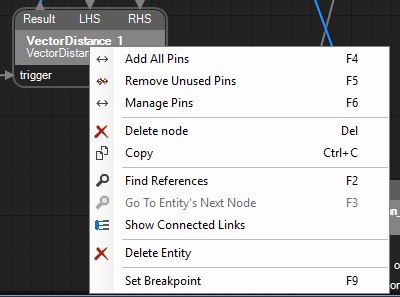
A breakpoint on a node stops before any of its entity's methods is called: the same methods Trigger Method lists. To stop on one method only, right-click its pin on the left of the node and choose Break on 'method' (Break on 'trigger', say), under Trigger 'trigger' in Game. It's ticked while the breakpoint stops on that method, and choosing it again takes that method off, and the breakpoint with it if it was the last. The items aren't offered on a node that has no methods, or on the composite's own parameters.
Like a method call, a breakpoint goes to the instance you reached by stepping down from the level's root composite (the path at the top of the composite panel), or, if you opened the composite on its own from the Composite Browser, to every running instance of it. A node shows a breakpoint set on its entity in any instance, and Remove Breakpoint takes away the one it shows.
The dot says where the breakpoint stands:
The status bar says what the game did with each one you set, such as Live Link: Breakpoint on entity - in 1 running instance(s), 3 method call(s) to stop on. You can set them before Live Link connects: they're kept, and set in the game once it can take them.
Breakpoints belong to the level open in OpenCAGE: opening another level starts with none, and the game only stops on them while it's running the level they were set for. They aren't saved with the level, or put on the undo history. The game keeps the ones it has until it closes, so if OpenCAGE is closed and opened again while the game runs, they come back once Live Link reconnects (see Limits for the one thing to switch back on).
While the scripts are held, your edits and method calls wait, as they do while the game is paused (see Level Start & Pause), and go in as soon as the scripts go on.
F8 and F10 only work while the scripts are held, with a flowgraph page taking the keyboard (click it first). The status bar says what the game did, such as Live Link: continued. The Debug Menu's Scripts > Debugger tab has the same controls in the game, and one more: Step frame, which lets one whole frame of the game run, scripts and all, then stops again.
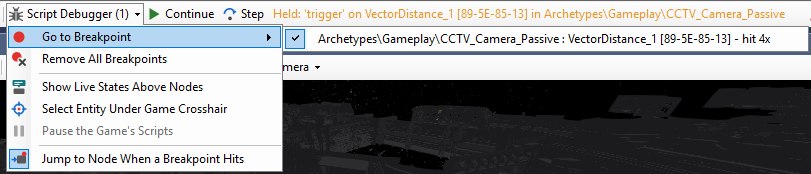
While Live Link is connected, or while breakpoints are kept for the game, the composite toolbar has a Script Debugger menu after Show Activity (and Clear Activity, while activity is shown) and a divider. It shows how many breakpoints there are, such as Script Debugger (2), and hovering over it says whether the debugger can be used now, or why not. Each item has an icon, and the two that are options, Show Live States Above Nodes and Jump to Node When a Breakpoint Hits, have a frame round their icon while they're on. It has:
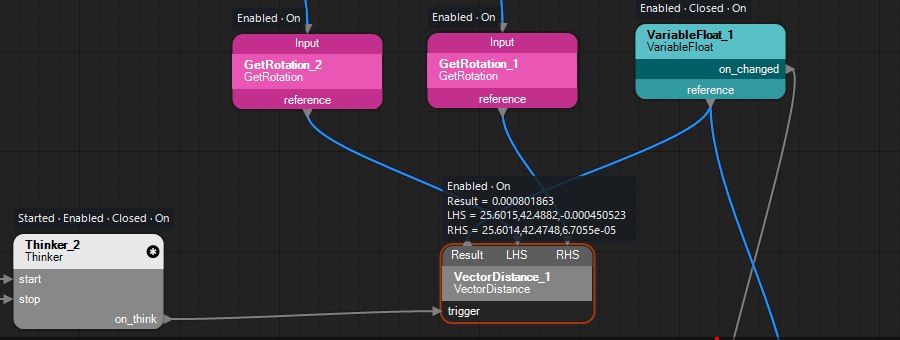
With Show Live States Above Nodes turned on in the Script Debugger menu, each node of the flowgraph page on screen gets a dark strip above it, showing its entity's state in the running game, read twice a second: Started, Paused, Enabled, Locked, Opened, Closed, On, Updating, Suspended, Invisible or Frozen, (idle) when it's none of these, and Not initialised before the game has set it up. Under that come the values its data pins (those on the top and bottom of the node) read in the game now, as pin = value: true or false, numbers, text, positions and colours, enums and resources. While a breakpoint holds the scripts, it's the state they stopped in.
A strip shows up to six lines, only the first once you zoom out a little, and nothing once you're zoomed well out. The composite's own parameters don't get one. It's shown for one running instance: the one you stepped down to from the level's root. A composite opened on its own from the Composite Browser only shows states while one instance of it is running; with more, the status bar says Live Link: live states can't be shown on composite - more than one running instance: open the composite from the level's root to see one.
Reading a data pin works its value out as the entity itself would, following the links into it. An entity whose value changes every time it's worked out, such as a random number, can give a new value each time it's read, so a script can behave a little differently while Show Live States Above Nodes is on. OpenCAGE doesn't remember it for next time.
Select Entity Under Game Crosshair, on the Script Debugger menu, finds the entity under the game's crosshair. In the game, tick Crosshair inspector on the Debug Menu's World > Inspect tab and aim at something: a door, a light, a prop. Then choose Select Entity Under Game Crosshair, and OpenCAGE opens the composite that holds it, at the instance it's in, stepped down to from the level's root, with the entity selected and its node in view. It's greyed out while Live Link isn't connected.
If it can't, a message says why: there's nothing under the crosshair, what's under it isn't a script entity, or the entity is in an instance the level open in OpenCAGE doesn't have, which usually means the game isn't running the level as saved.
The Debug Menu's Scripts > Debugger tab shows the breakpoints as the game has them: whether the scripts are running or held, the held call (its method and entity, the composite and instance it's in, and the calls that led to it), with Continue, Step, Step frame and Pause scripts buttons, then every breakpoint, with a box to switch it off and on, how many running instances it's in, how many times it has been hit, and a Remove button. Stop at breakpoints switches them all off without taking them away, and Remove all takes them away. Breakpoints are set from OpenCAGE: the tab has no way to add one. See the Debug Menu.
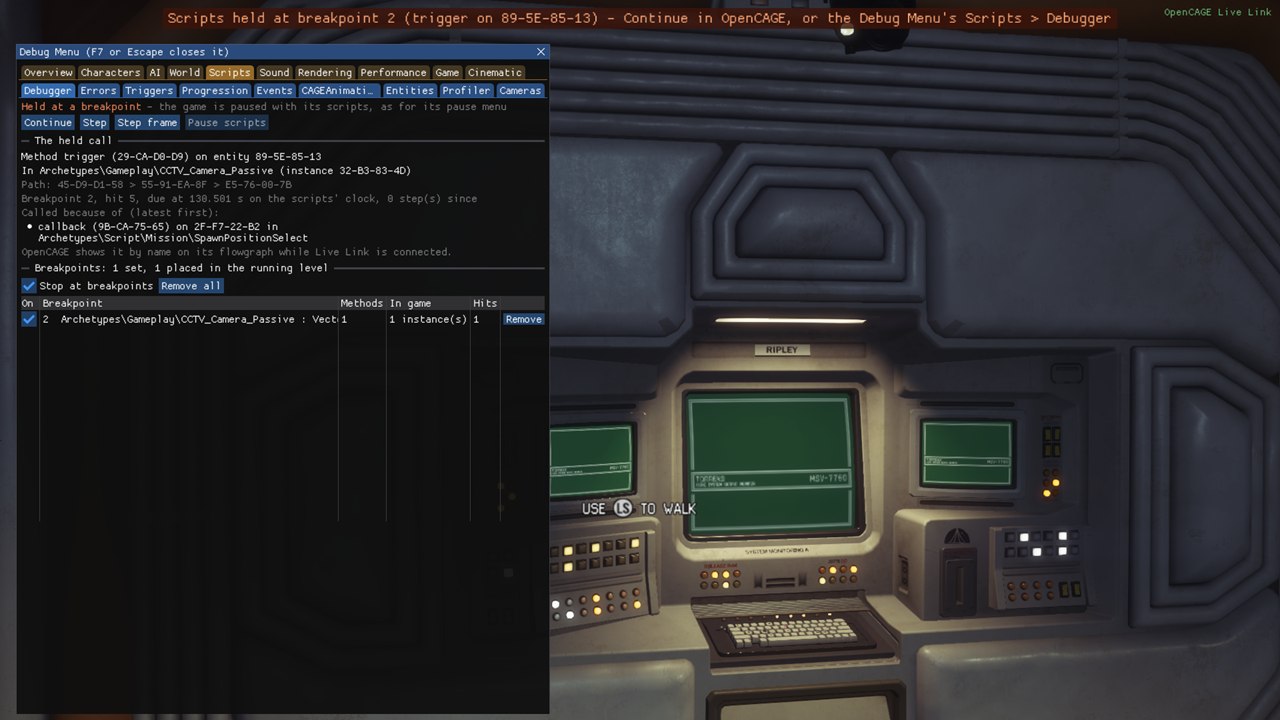
The game held at the same breakpoint, with the Debug Menu open on Scripts > Debugger.
The game checks that the level's script entities are set up properly as it runs them - a pickup spawner that names no item, a door with no animation, an animation set missing the animation asked for, a zone link the wrong way round - but the retail game never says what it finds. The Runtime Error Log shows it, like a game engine's console: each failed check (with an amber sign) and error (with a red one) as it happens, with the entity it's about, the composite that entity is in, and the time on the level's script clock.
Tick Error log (under Live Link) in Launch Game and it opens as the game starts. You can open it yourself from the Script Debugger menu too, while the game is connected, though the game only notes its errors when started with Error log or the Debug Menu ticked.
![The Runtime Error Log window: Clear on the left of its toolbar, Clear on Play (pressed) and Group by Entity on the right. Three rows, each a red Error sign with SPEECH: No valid entity connected to speech entity attempting to play, cut short, in the Message column, then the entity - Tannoy_Seegson_Advert, Tannoy_Corporate_Ident and Tannoy_Info_Machine, each with its id - the composite TECH_Hub, and script times of 29.61, 31.16 and 32.71 seconds. The first row is selected, and the bottom of the window shows it in full: Error: SPEECH: No valid entity connected to speech entity attempting to play Play_Random_TANNOY_SEEGSON_Adverts. I need a valid character or sound object - see Jack if you don't understand. Entity: Tannoy_Seegson_Advert [3B-A8-82-1B] in TECH_Hub. Double-click to go to it (in the level's root). At 29.61 s of the level's script time.](img/error-log.jpg)
Three tannoy Speech entities added to TECH_HUB over Live Link with nothing to speak through, then started: the game's check of each fails as it plays. The first error is selected, so the bottom of the window shows it in full.
![Three Speech nodes in a row on a flowgraph page - Tannoy_Seegson_Advert, Tannoy_Corporate_Ident and Tannoy_Info_Machine - each showing its character and sound_event pins along the top, with the sound event's name in orange above sound_event, and its start pin on the left. Each node has an amber warning sign on its top-right corner. Beside the start pins, Show Activity's counts read [2], [1] and [1].](img/error-log-signs.jpg)
The same three entities on their flowgraph page, each with the warning sign while the log has its error. The counts beside start are Show Activity's.
![The Runtime Error Log with Group by Entity pressed: the same three errors, each under a heading naming its entity, id and composite, such as Tannoy_Seegson_Advert [3B-A8-82-1B] in TECH_Hub, with (1) after it for the one error it has.](img/error-log-grouped.jpg)
Grouped by entity, each heading says how many errors that entity has.
The game keeps its latest 2048 errors, across levels, until OpenCAGE asks for them, twice a second; if more come at once than that, the bottom of the window says how many were missed. An error from a level other than the one open in OpenCAGE is listed, but going to it says it happened elsewhere. The Debug Menu's Scripts > Errors tab shows the same errors in the game.
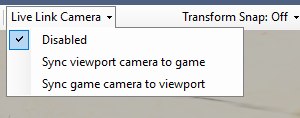
While connected, the Viewport toolbar has a Live Link Camera drop-down, after Highlight Zones. It links the Viewport's camera to the game's, one way or the other. It's on Disabled each time Live Link connects, so the game starts out on its own camera and the Viewport stays where you left it until you pick a sync. While either sync is on, the button shows pressed, and hovering over it says which way the cameras are linked.
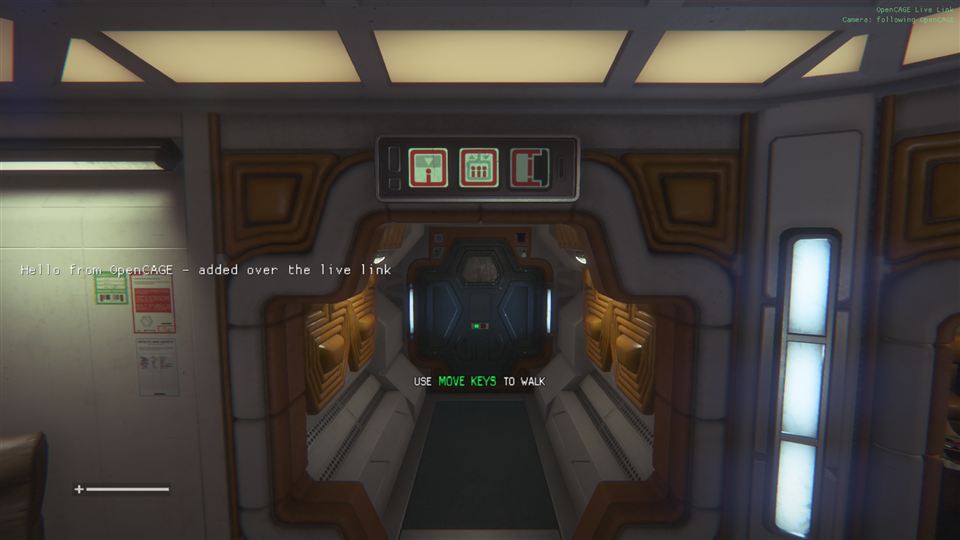
The game drawing a corridor on the Torrens from the Viewport's camera. The overlay in the top-right corner reads Camera: following OpenCAGE.
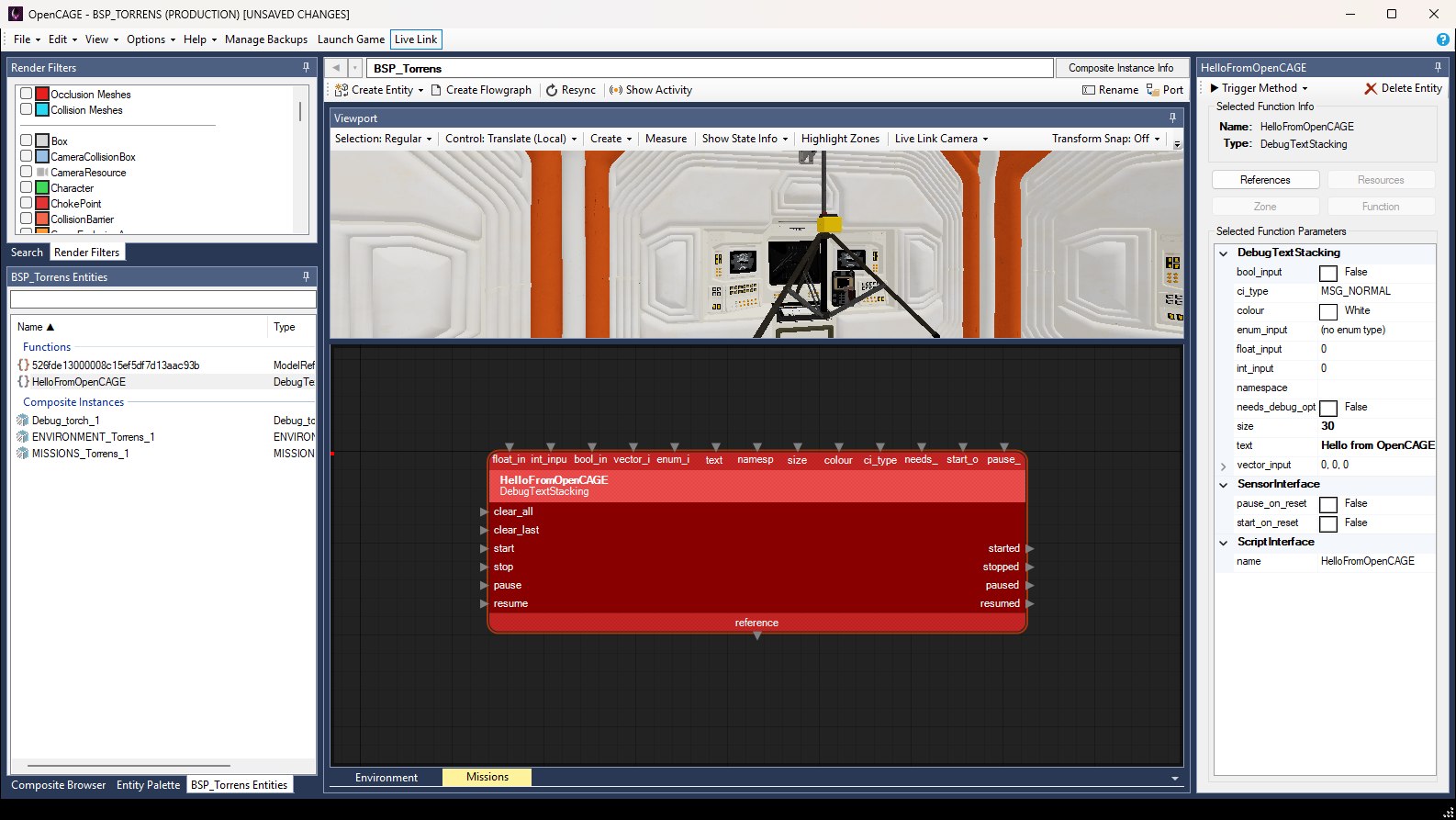
The other way round: the Viewport following the game's camera.
Both follow only while the Viewport shows the level itself (its root composite, or a composite you stepped into from there) and the game is running the level you have open. The game gets its own camera back when you choose Disabled, when Live Link disconnects, or when you open another composite on its own. The player's camera is never moved, so the view goes straight back to it.
With Sync game camera to viewport, the Viewport's camera stays locked for as long as that choice is on and Live Link is connected, even when it has nothing to follow, as in a composite opened on its own: open the level's root composite to see the game's view again. Choose Disabled to move the Viewport yourself again.
Game logic sees the Viewport's camera too. While the game draws from the Viewport's camera, anything that checks what the player's camera sees reacts to it instead: camera viewcone triggers, the alien's checks for whether it's in view, and AI conditions on the camera's direction. It's the same with the Debug Menu's free camera, so bear it in mind when testing things that depend on being seen.
The Debug Menu's free camera, in its Cinematic group (which replaced Cinematic Tools), runs alongside Live Link. While it's on, it has the game's camera: a game following the Viewport's camera stops following it until the free camera is turned off, and on Sync game camera to viewport the Viewport follows the free camera. Possess Characters runs alongside Live Link too: while the game follows the Viewport's camera, that camera wins over the one behind the character you're steering.
Keep your mouse cursor. While a level is played, the game normally takes over the mouse cursor, which gets in the way of flying the Viewport beside it. Tick Unlock mouse in the Launch Game window's Game options and the game leaves the cursor alone. When you want to look around in the game itself, click its window and press the Unlock mouse key (F4 unless you chose another); press it again to free the cursor.
An EnvironmentMap entity gives the models it's linked to a cubemap to reflect: a picture of the room all around a point, taken from where the entity is. When you change a room, its reflections still show the room as it was. Live Link can take a new one in the running game, showing the room as it is now.
While connected, select an EnvironmentMap entity and press Capture in the Entity Inspector (the button that reads Function for most entities; it's greyed out while Live Link isn't connected, and reads Capturing... while a capture runs). It takes a few seconds:
ayz\env\cubemaps\level\composite\composite_entity.dds (with a number on the end if that's taken), and the entity's Texture is set to it.To capture at another size, pick one under Options > Misc > Cubemap Capture Size: 64, 128, 256 or 512 pixels a face, or Same as the Cubemap Replaced (the default). A bigger cubemap gives mirror-like surfaces a sharper reflection, and leaves rough ones as blurred as before. The faces are cut from the game's picture, so its window needs to be at least as tall as them; if it isn't, they're stretched up and the status bar says so.
It's one step on the undo history: undo takes the new cubemap out and puts the old one, and the entity's Texture, back. The status bar says Live Link: Captured entity's cubemap at (x, y, z) as texture, or why it couldn't.
To see it in the game, save, then load the level again: the game reads cubemaps when it loads a level. If the old cubemap is still used by another EnvironmentMap, the models this one lights keep it until a Save & Build works out again which cubemap each model reflects, and the status bar asks for one.
File > Recapture All Cubemaps, below Export Composites, does the same for every EnvironmentMap in the level, one after another, with a progress bar (a few seconds each: a level with 50 takes about four minutes). Keep the game running and unpaused meanwhile; the editor stays usable. Choose it again (it reads Stop Recapturing Cubemaps) to stop after the one being captured. It stops by itself if the game turns a capture away, and skips any EnvironmentMap whose composite is used in more than one place, or not at all. Each cubemap is its own step on the undo history, and a summary at the end says how many it captured, which it couldn't and why, and whether to save or Save & Build.
The capture is taken from where the entity is in the level: through the instances you stepped down through from the root composite (the path at the top of the composite panel), or, if you opened its composite on its own, the one place that composite is used. A composite used in more than one place has to be opened from the root, so OpenCAGE knows which one to take it from.
Three of the configuration editors change the running game as you edit them: Radiosity, Hair and Skin Shading, and Global Constants (the glow round things the player can use, the stealth light meter, the interaction distance, and the squad and suspicious item timings).
Without Live Link, a change there reaches the game the next time it loads a level, when it reads the settings files again. While Live Link is connected, each change also shows in the running game as you make it, so you can tune the bounce light or the hair shading while looking at the result. The line at the bottom of each editor says which applies, or why the game didn't take a value.
Three more editors work with the running game the same way, but read whole files: Alien Configs, Difficulty Settings and Viewcones. The game reads those only when it starts, so without Live Link a change there needs the game restarted. With Live Link connected, and the game started with the Debug Menu on (it does the reading), each change has the running game read the folder again a moment after you make it, and the alien, every character or the view cones take up the new values (see Config Files). The line at the bottom of each editor says how it went: the files read again and how many characters took them up, why not (a file missing or being written, the Debug Menu off), or that the game will do it once it's running again (paused, or no level loaded). Opening the editor, or picking another entry in it, changes nothing the game reads, so nothing is sent then.
When the game was started with both Live Link and the Debug Menu, OpenCAGE can work the Debug Menu from outside the game. The script debugger, Select Entity Under Game Crosshair and Show Live States Above Nodes work this way, and an AI assistant can do nearly anything with the menu that you can in its window:
characters.labels for the labels over the characters' heads, game.dont_write_saves for Don't write saves, or cinematic.camera for the free camera.game.speed, the game's speed.game.jump_checkpoint and cinematic.go_to, say. The command help lists every one, with what it takes.There are a few hundred of these. Each name starts with the part of the menu it belongs to: characters., ai., game., render., cinematic., debugger. and so on.
Running a command puts Debug menu: command on the line under OpenCAGE Live Link in the top-right corner of the game for a few seconds, as an edit does. Commands that only report leave that line alone: help, the lists, a status or state, and the reads the script debugger and Show Live States Above Nodes make several times a second. Opening or closing the window, picking a tab or a character, and setting a switch or value leave it alone too.
If the game was started without the Debug Menu, it answers The debug menu is off in the game: start it again from Launch Game with Debug Menu ticked. If its runtime utils are older than OpenCAGE, the answer says they're too old for the Debug Menu: starting the game from Launch Game again updates them.
An AI assistant connected to OpenCAGE can use Live Link too. Its script edits go to the game automatically, as yours do, and it has tools of its own:
runtime_utils: the connection's status, connect and disconnect; what the game is running and where its camera is; push a composite; call a method on an entity; hold or play a CAGEAnimation in the game, as Animation Mode does (animate); describe a composite's running instances; take a screenshot of the game; load a level; and Show Activity (activity): switch it on or off, clear it, or list the links the game has used in the open composite, with how often and how long ago, and how many times each output fired and each method was called.set_viewport_view with live_link_camera: the Live Link Camera choice, disabled, viewport_to_game or game_to_viewport. Set it after connecting: it goes back to disabled whenever Live Link connects.set_viewport_camera: puts the Viewport's camera at a position and direction, and the game's with it while the game follows the Viewport.capture_environment_maps: captures cubemaps for one or more EnvironmentMap entities, a composite's, or every one in the level, one after another, with the same steps as the Capture button (all_in_level is Recapture All Cubemaps). It can also take a face size (otherwise Cubemap Capture Size's, which editor_options sets too), a format, how long to wait for zones, and keep the HUD, the lens effects or the old cubemaps.runtime_utils with settings: reads, or changes in the running game only, the numbers from the radiosity, skin and hair shading, selection overlay and global constants settings files (see Live Settings). A change made this way lasts until the game next loads a level, as the files themselves aren't changed. With file alien_configs, difficulty_settings, viewcones or ai_configs (all three), it has the running game read those folders again from the files as saved instead (with the game started with the Debug Menu on).runtime_utils with debug_menu: works the Debug Menu in a game started with it, as under The Debug Menu Over Live Link. menu is report (the default), open, close, tab, select, set (a switch, to value), value (a value, to number) or run (a command, with argument), and name names the tab, character, switch, value or command.runtime_utils with debugger: the script debugger. It sets and removes breakpoints (on an entity, or one of its methods, in one instance or every instance), lists or clears them, reads where the scripts are held and the calls that led there, continues, steps a round of calls or a whole frame, pauses, selects what's under the game's crosshair as Select Entity Under Game Crosshair does, and reads the live states of a composite instance's entities. The breakpoints an assistant sets are drawn on your flowgraphs, and the ones you set are in its list.launch_options with live_link: the Live Link box; debug_menu and debug_menu_key: the Debug Menu box and its key; dont_write_saves: Don't write saves. The old cinematic_tools is still taken, as debug_menu.AI Assistants has more on each.
OpenCAGE.RuntimeUtils.log then says it could not listen on 127.0.0.1:8765). Close the others and start the game from Launch Game.The game also writes what Live Link did (every edit applied, call made or request turned away) to OpenCAGE.RuntimeUtils.log in the game folder. OpenCAGE's status bar messages clear after a few seconds, so the log is where to look for one you missed. It's started afresh each time the game starts, so read it before starting the game again.
Each edit the game answers puts a line on the status bar, starting Live Link: composite -, for a few seconds:
