OpenCAGE can work with more than one Alien: Isolation install — for example a clean Steam copy for playtesting, a separate modded copy, or installs from different storefronts (Steam, Epic, GOG, and so on).
It also supports non-Windows builds of the game (mobile, Switch, Mac, and Linux). Those installs don't include AI.exe, so registration works a little differently — see Non-Windows Installs.
Each install is registered in the Game Directory Manager, shown below. One install is your default (what OpenCAGE opens on startup). You can also open additional editor windows pointed at other installs at the same time.
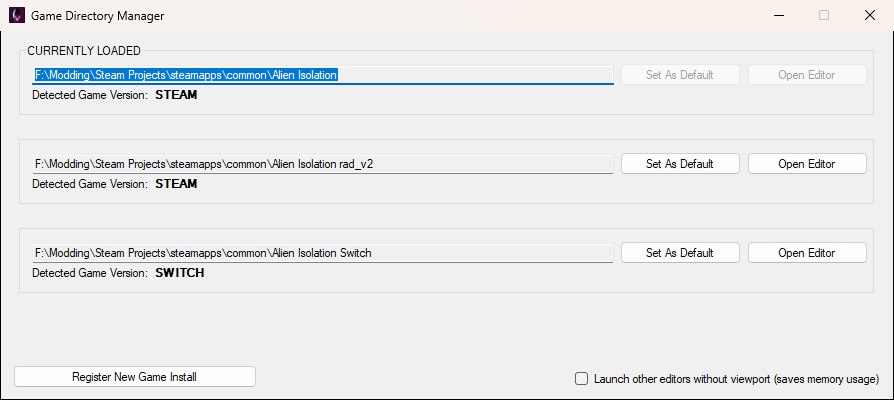
The Game Directory Manager: one row per registered install, the install this window is using marked CURRENTLY LOADED, and the viewport option in the bottom-right.
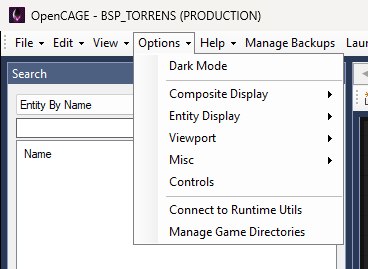
From the main OpenCAGE window, open Options → Manage Game Directories — it's the last item on the Options menu:
Click Register New Game Install, then locate that copy's AI.exe. OpenCAGE checks the folder is a valid Alien: Isolation install and adds a row for it to the manager, showing the path and its Detected Game Version — the platform it found, such as STEAM, EPIC_GAMES_STORE, GOG, WINDOWS_STORE, SWITCH, IOS_ANDROID or MAC_LINUX.
By default OpenCAGE asks you to pick AI.exe. If you're registering a non-Windows install that doesn't have that executable, use the -dont_require_exe launch argument so you can select the install folder instead.
You can't register the same path twice. If the folder isn't a valid install, registration fails with an error.
Each registered install has a Set As Default button, as in the row below. It's greyed out on the install that is already the default (the top row in the manager above). The default is the install OpenCAGE loads when you launch the app normally from Steam.

Set As Default does not switch the install already open in your current window — restart OpenCAGE to load the new default. To work on another install immediately without restarting, use Open Editor instead.
The install this window is using is labelled CURRENTLY LOADED in the manager, and its Open Editor button is disabled. On any other registered install, click Open Editor to start a separate OpenCAGE window for that path. Your original window keeps whichever install it was already using.
While that second editor is open, Open Editor for the same path stays disabled. Close the extra window to free the button again.
Game Directory Manager is only available in the primary OpenCAGE window (the one you launched from Steam). Extra editors opened for other installs can't change the registered list — manage installs from the primary window. If you close the primary window while extra editors are still open, one of them takes over within a few seconds and Manage Game Directories appears in its Options menu.
With several editors open, Options → Misc → Show Game Platform can help: it adds the detected platform to the window title, so a Steam install reads OpenCAGE - Steam - BSP_TORRENS (PRODUCTION) instead of OpenCAGE - BSP_TORRENS (PRODUCTION) (compare the title bar below with the Options menu screenshot above). The other labels are Epic Games Store, GoG, Windows Store, Nintendo Switch, Mobile and Mac/Linux.
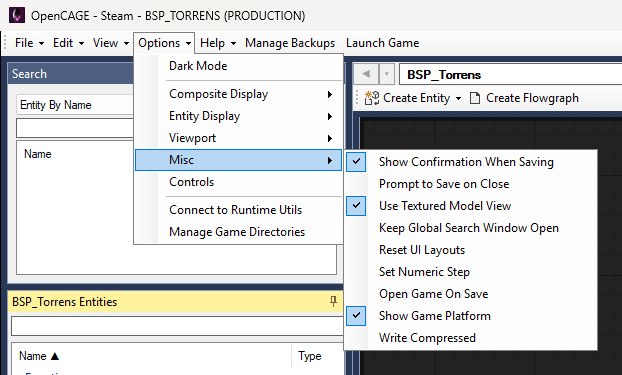
With Show Game Platform on, the title bar names the install's platform, which tells the editor windows apart.
By default, registering a game install means locating Alien: Isolation's AI.exe. That works for Windows PC builds, but OpenCAGE also supports other versions of the game that aren't Windows-based — including the mobile versions (iOS/Android), the Switch version, and Mac/Linux versions.
Those builds don't include AI.exe, so OpenCAGE can't ask you to pick that file. Instead, launch OpenCAGE with the -dont_require_exe argument. That switches registration to folder selection: Register New Game Install shows the usual OpenCAGE Setup prompt and then opens a Browse For Folder dialog (below) instead of a file picker, and you choose the install folder where AI.exe would normally live — the folder that contains the game's DATA directory.
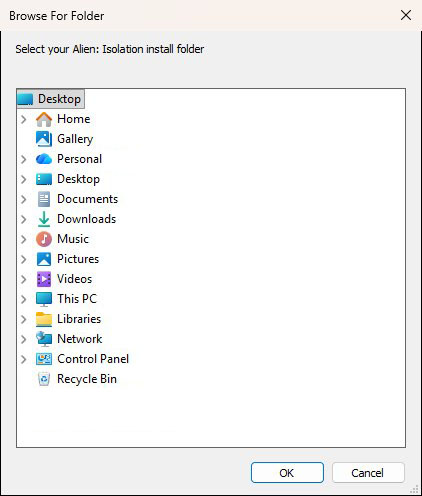
After you pick the folder, OpenCAGE validates it and detects the game version the same way it would for a Windows install.
In Steam: open OpenCAGE's properties → Launch Options, and add:
-dont_require_exeYou can combine this with other launch options (for example the Viewport disable option) by separating them with a space.
Every editor window with the Viewport enabled starts its own 3D view, which uses more memory and can slow level load. That adds up quickly if you keep several installs open at once.
In the Game Directory Manager, enable Launch other editors without viewport (saves memory usage) — the checkbox in the bottom-right of the window shown in the Introduction. When that option is on, windows opened with Open Editor start without the Viewport. If the window you're in is itself running without the Viewport, the box comes pre-ticked.
You can also turn the Viewport off in any window with Options → Viewport → Enable Viewport, or for a single session with the -disable_viewport launch option. See the Viewport docs for both.
