The alien moves through the ceiling. It climbs up into a vent, travels unseen, and drops out of another vent somewhere else - to hunt, to escape when it is flamed, to leave when the script sends it away. In your own level it can only do that through vents: the game's vent composites, placed under ceilings, and the backstage navmesh a Save and Build bakes from them.
A level with an alien and no vents crashes the game the first time the alien retreats - when it is flamed, sent away by the script, or after an ambush - because it asks for the nearest vent and there is none. Level Check and Save and Build say so.
File → Alien Vents... finds spots for vents, places the game's own vent composites there, and checks that the alien will be able to use them.
A vent is a composite holding a PathfindingAlienBackstageNode: the point on the floor where the alien stands to climb in (and lands when it drops out), the clips it plays going up and coming down, and the vent's kill trap. The composite's origin is the vent itself, in the ceiling; the node stands the vent's height below it, on the floor.
While the alien is in the vents it is "backstage": hidden, moving over a sheet of navmesh that Save and Build makes 6 m above the vents' floor points, joined to the floor by a link up into each vent. That sheet and those links are what let it travel from one vent to another.
The game's levels use three, and the helper picks between them by the height of the ceiling over each spot:
Archetypes\Jobs\VentTraversalMarker, the most common (corridors, low rooms). For ceilings 3.2 to 5.1 m up.Archetypes\Jobs\VentTraversalMarker6M. For ceilings 5.1 to 7.6 m up.Archetypes\Jobs\VentTraversalMarker9m, for tall halls. For ceilings 7.6 to 12 m up.A vent doesn't need its ceiling at exactly its height: once the alien is in the ceiling it is hidden, so the game's own levels mix them freely. The composites are the game's own, so they aren't shipped with OpenCAGE: when your level doesn't have one yet it is brought in from a level of your game install that has it (PRODUCTION/TECH_HUB has all three), the way Import Composites From Level does - with its effects and sounds. Like any import that can't be undone; the vents you place can.
Each vent has a Network_ID (0 unless you change it). The backstage sheet is made for each network on its own, over that network's vents - so the alien only travels between vents of one network. A network needs:
Spread the vents over the area the alien hunts: it uses them to close in on the player, too.
Save and Build your level once first (the helper looks for spots on its navmesh), then open File → Alien Vents... - or, if Level Check says "The alien has no vents to retreat into", press its Add vents... button.
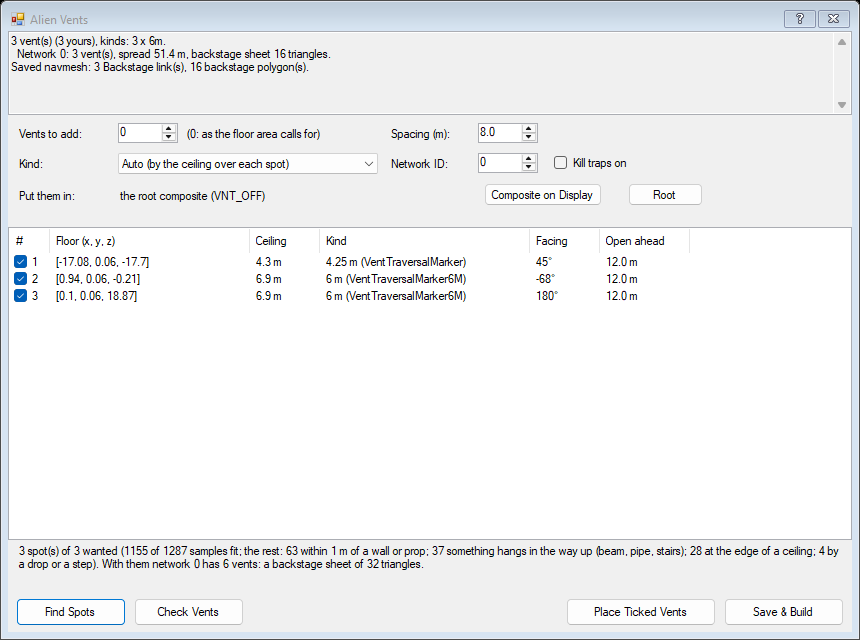
AlienVent_1, AlienVent_2 and so on, on a flowgraph page called AlienVents. It's one step on the undo history.Placed vents are ordinary entities: move one with the Viewport gizmo or its position (the vent itself; its floor point is the vent's height below), delete one, or set its pins in the inspector.
The helper samples the navmesh the alien walks on (big areas only - not the tops of crates) and keeps a spot when:
From those it picks the spots farthest apart: first the one farthest from the middle, then each time the one farthest from every vent so far - your level's own vents included - until it has enough, or no spot is Spacing metres from every vent. Each vent faces the most open way, toward the middle of the area. It reads your level's collision as it is now (unsaved edits included) and the navmesh as the last Save and Build made it.
DisableKilltrapOnReset is set), since your ceiling has no vent model for it to come out of.Vents only work through the navmesh: Save and Build with the navmesh baker on makes the backstage sheet over each network and the link up into each vent. Vents add no models, so they don't need the lighting baked again (Options → Save/Build → Don't Rebuild Radiosity keeps a big level's build quick). A plain Save doesn't bake them.
Every Save and Build, and Level Check at any time, checks the alien and its vents:
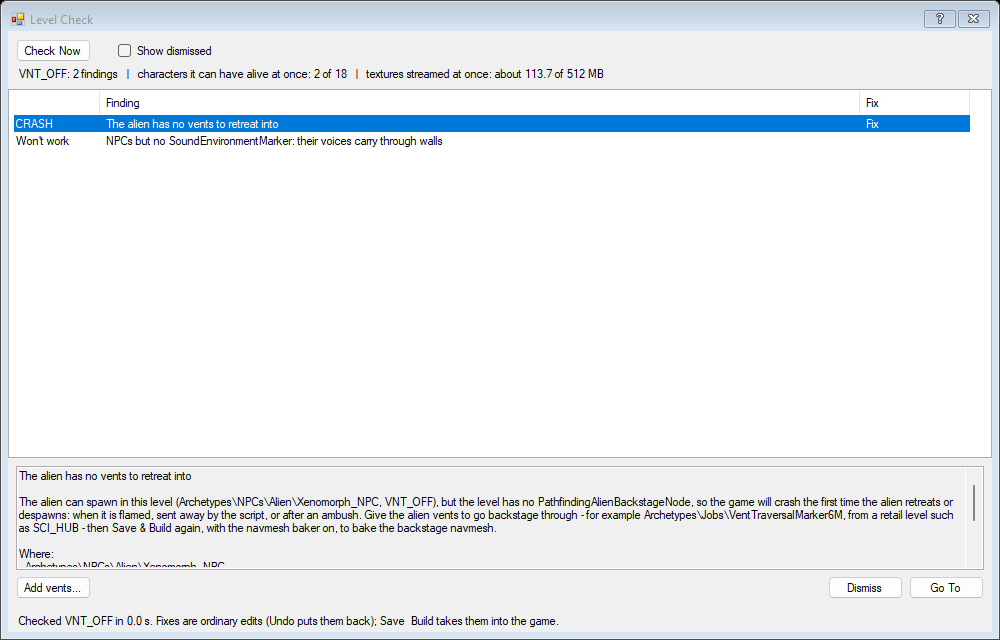
These only look at vents you placed or changed: the game's own levels keep the vents they ship with.
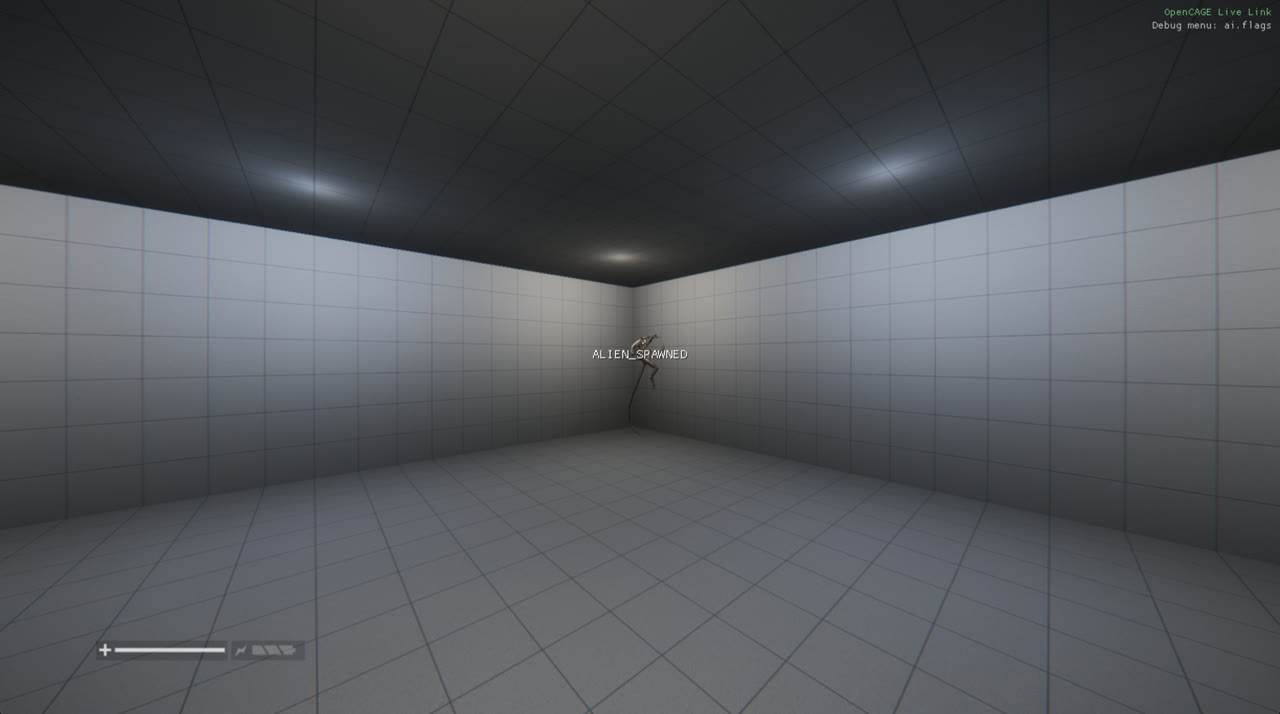
A test room made with Create Level, its vents placed by Alien Vents: the alien hunting the player climbs into the nearest vent, crosses the room unseen in the ceiling, and drops out of another vent near where it heard the player.
With the Debug Menu on, the alien's state says when it is in the vents (ai.flags: backstage, and in_backstage_transition while it climbs in or drops out), and Alien → backstage target draws where it is heading. A vent's reached_top and reached_bottom pins fire when the alien has climbed into it and dropped out of it: link them to a DebugText to see which vents it uses.
To send the alien into the vents from your script, as the game's own missions do: a TriggerBindCharacter whose characters links to the alien's npc_reference, its bound_trigger to an NPC_WithdrawAlien's trigger (time_to_force 0 sends it at once, permanent off lets it come back; its cancel brings it back).
An AI assistant connected to OpenCAGE adds vents with add_alien_vents (the spots found, or spots it gives; count, spacing, kind, network_id, killtraps, region; dry_run lists the spots and what would be brought in) and checks them with check_alien_vents (every vent, each network's sheet, what the navmesh has baked, the problems). check_level and fix_level_check report and fix the Level Check findings above.
