After loading a level, open View → Material Mapping Editor to launch the mapping editor — the window itself is titled Edit Material Mapping, shown below. It manages named sets of From → To material remaps stored in the level's WORLD/MATERIAL_MAPPINGS.PAK.
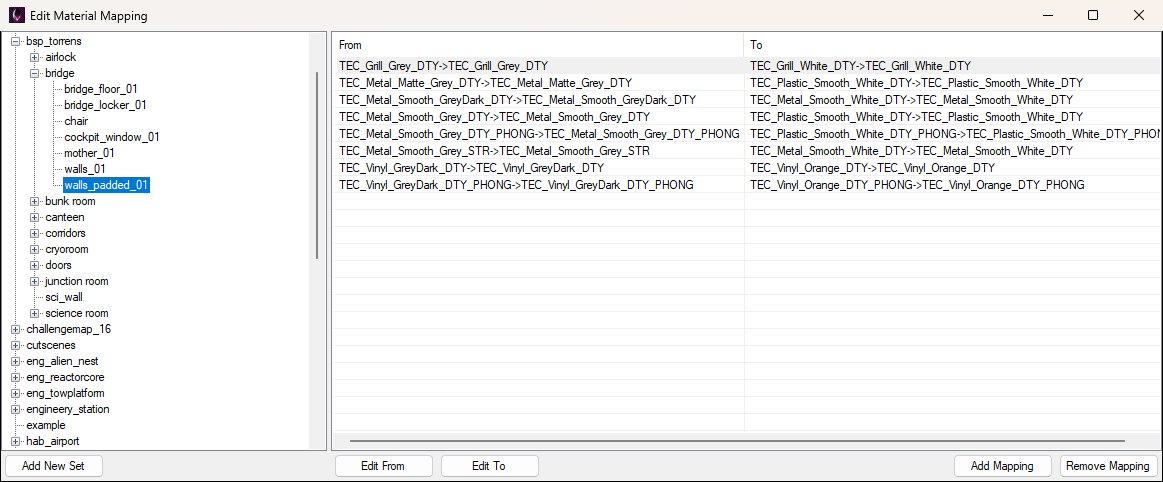
The Material Mapping Editor: mapping sets on the left, the selected set's From → To rows on the right.
Material remappings are applied to composite instances via their mapping parameter: select the mapping row in the entity inspector and click the … button at the right of its value, as shown below — this opens the same window as a picker with a Select Set button. That remaps materials on ModelReference entities within that instance's immediate child composite — without editing the materials themselves.
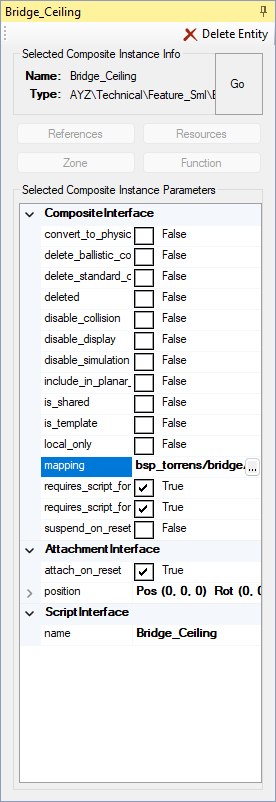
A composite instance's mapping parameter in the entity inspector; the … button opens the Material Mapping Editor as a picker.
The same picker also opens from Set Mapping... in an entity's Collision Mapping resource (the inspector's Resources button), to choose the set that collision mapping carries.
Note: mappings are written back to MATERIAL_MAPPINGS.PAK and applied to the level's placed models when you save, so the game shows the remapped materials on its next launch.
This is separate from the Material Editor, which edits a material's samplers, features, and shader parameters.
The left tree lists mapping sets for the loaded level. Names with / show as folders. Every retail level ships the same library of around a thousand sets, grouped by level and room (e.g. bsp_torrens/bridge/walls_padded_01), so the tree is long — expand the folder for the area you're working in, as in the screenshot above.
Click Add New Set, enter a unique Name:, then OK to create an empty set (the dialog is shown below). Names are compared case-insensitively and a duplicate is refused with a Duplicate Name warning. There isn't a rename or delete-set action in the editor — only add sets and edit the rows inside them.
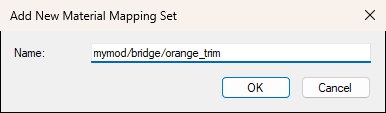
Add New Set: a name containing / is shown as nested folders in the tree.
When the window is opened as a picker, Select Set applies the highlighted set to the entity (or to every entity in a multi-selection) and closes the window; the set the entity currently uses is pre-selected when the picker opens, as shown below.
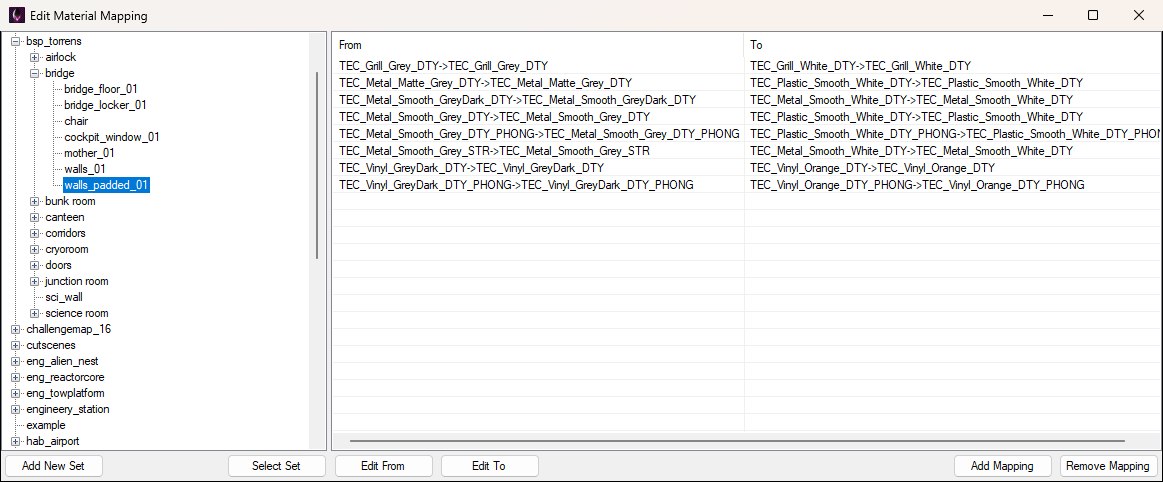
Picker mode: the entity's current set is pre-selected and Select Set applies the highlighted set to the entity.
Select a set to show its mappings in the From / To list on the right. Remaps apply when material names match exactly (case-sensitive).
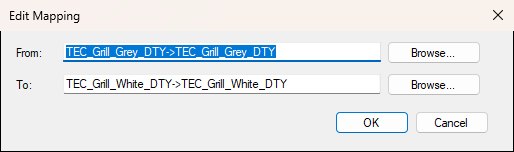
Add Mapping and Edit Mapping share this dialog; Browse… opens the Material Editor as a picker.
Edits apply in memory immediately; connected Viewport views can update without waiting for a disk save.
The mapping editor has no separate Save button. Persist changes with File → Save Level (Ctrl+S), which writes WORLD/MATERIAL_MAPPINGS.PAK (or the patched-level equivalent under _PATCH).
Saving closes the game if it's running so install files aren't locked.
