Open View → Configuration Editors → Core Game → Localisation to edit the game's on-screen text. It opens in its own window, shown below, and doesn't need a level loaded — it works directly on the shared text files.
Nearly every piece of text the game shows you — objective text, terminal contents, audio log titles, UI labels, subtitles — is a localised string looked up by ID rather than written into the script. The Localisation Editor is where you edit those strings, and where you add new ones for your own content.
The editor works across all nine shipped languages at once: Czech, English, French, German, Italian, Polish, Portuguese, Russian and Spanish.
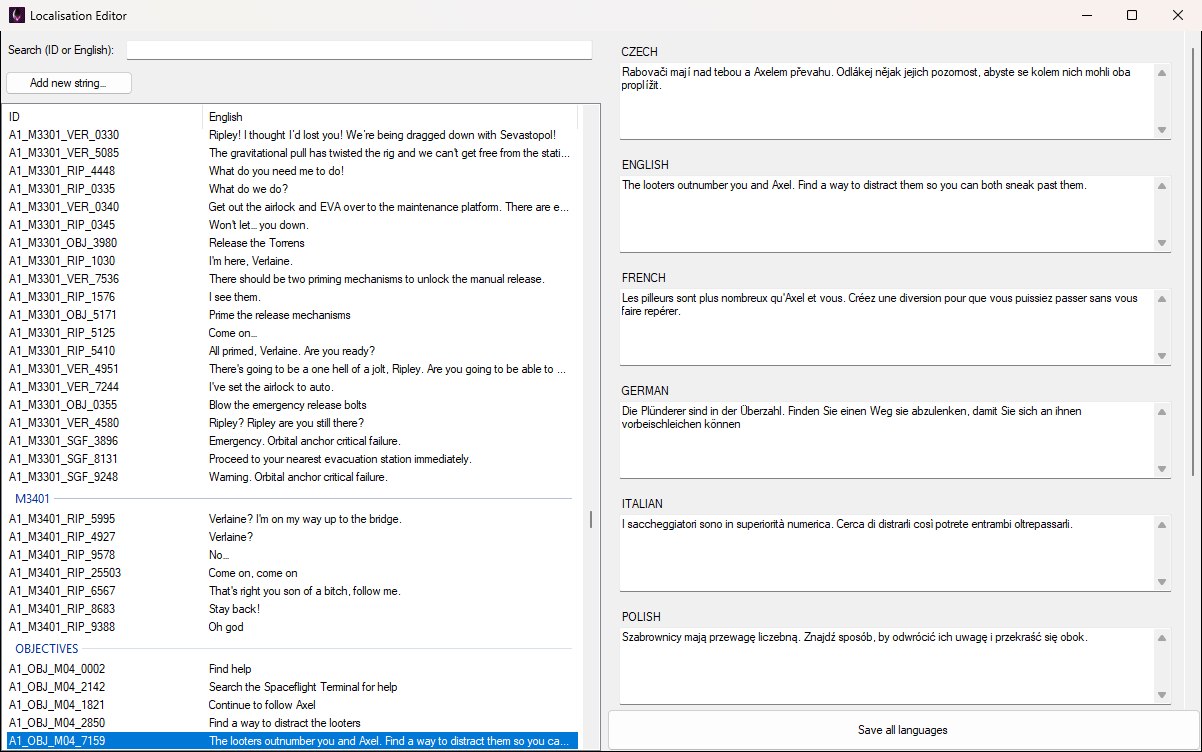
The Localisation Editor: every string on the left, grouped by text file; the selected string's text in each language on the right.
Text lives in plain text files under DATA/TEXT/, one folder per language, with a matching set of files in each. A string is identified by two things:
Because the same ID has to exist in every language folder, the editor always operates on all nine at once. There is no way to have a string that exists in English but not in German — a missing entry is a text lookup the game can't resolve.
The list on the left holds every string in the game, grouped under a heading per text file (OBJECTIVES, M3401 and so on — the file name without .TXT). Each row shows the string ID and its English text; a string with no English value shows an em dash.
The Search (ID or English) box above the list filters as you type — a short delay after each keystroke, because the full string list is large. It matches on both the ID and the English text, so you can find a string either by its name or by something you saw on screen in game.
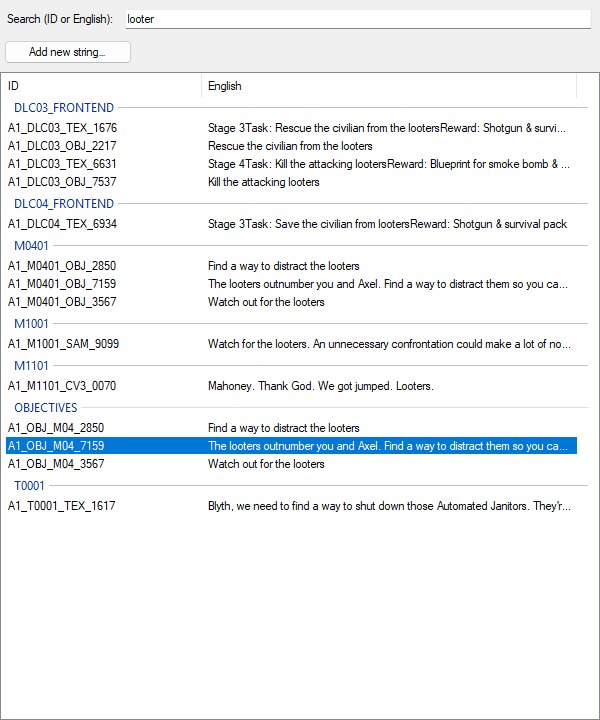
Searching 'looter' narrows the list to matches from seven different text files; the selection survives the filter.
In the example above the list has been narrowed to every string mentioning looter — all of them matched on their English text rather than their ID — and the group headings show which text files the matches came from. The selection is preserved across searches where possible, so refining a filter doesn't lose the row you were working on, and the language panel stays filled with the row you had selected.
Select a row and the panel on the right fills with one text box per language, each labelled with the language name. Edit whichever you need — you do not have to fill in all of them, and languages you leave alone are written back unchanged.
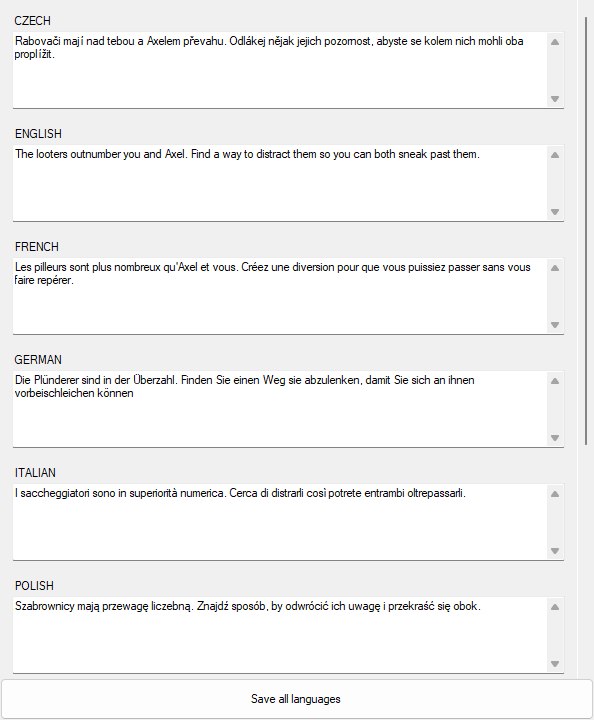
One box per language; Save all languages writes them all back at once.
Save all languages, the button along the bottom of the language panel, writes every box back to its language's file in one go and confirms with a Saved message. The list updates to show the new English text immediately.
The language panel scrolls — at a typical window height only the first six or so languages are in view, as in the figure, with the rest behind the scrollbar — and reflows with the window, so widen the editor if you're working with long text.
Saving writes straight to the game's text files. There is no separate level save, and no undo. If you're making sweeping changes, take a backup of DATA/TEXT/ first — the Backup Manager's config reset doesn't cover text files.
Add new string… opens a dialog for creating an ID that doesn't exist yet. The dialog, shown below, asks for three things.
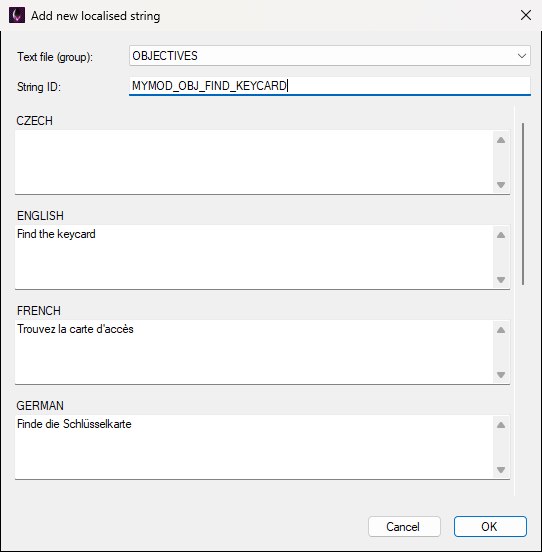
Adding a string: pick the text file, name the ID, and fill in whichever languages you have.
Press OK and the string is appended to all nine language files at once; the list reloads with your new entry selected so you can carry on editing it.
IDs can't contain [ or ]. If the ID already exists in any language's copy of the file, or a language is missing that file, the editor tells you and nothing is added — every check runs before anything is written, so a failure never leaves the string half-added.
Once a string exists, reference it by its ID from the entity parameters that take localised text — objectives, UI prompts, terminal content, and so on. The engine resolves the ID against whichever language the player is running, which is the whole point of going through this editor rather than typing text into a parameter directly.
If a string ID doesn't resolve at runtime you will usually see the raw ID on screen, which is a quick way to spot a typo.
