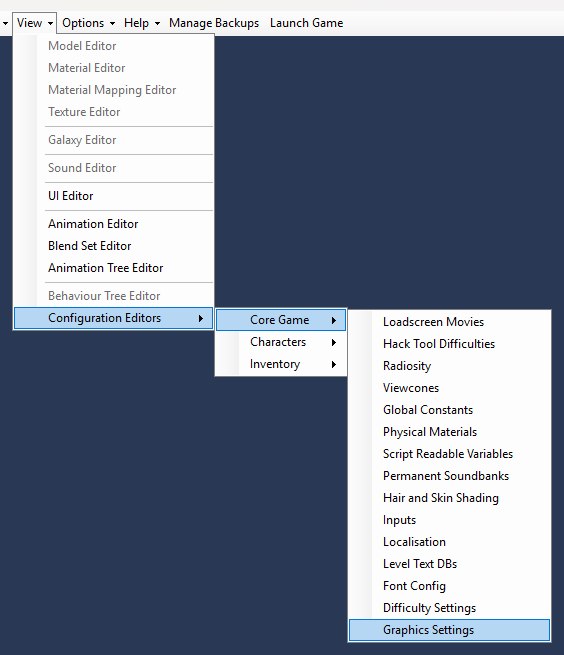
To edit graphics presets in OpenCAGE, open the View dropdown on the main toolbar and go to Configuration Editors → Core Game → Graphics Settings — it's the last item in the Core Game list, as shown below. No level needs to be loaded.
The Graphics Settings Editor edits the lists of selectable Video options written to DATA/ENGINE_SETTINGS.XML — things like windowed resolutions, FOV, shadow quality, and LOD distance. It does not turn those settings on for you; it adds (or removes) choices that appear on the in-game Video settings page, which players pick at runtime. The editor is a single window, shown below: five preset lists, two small groups of extra checkboxes in the top-right corner, and a Save button.
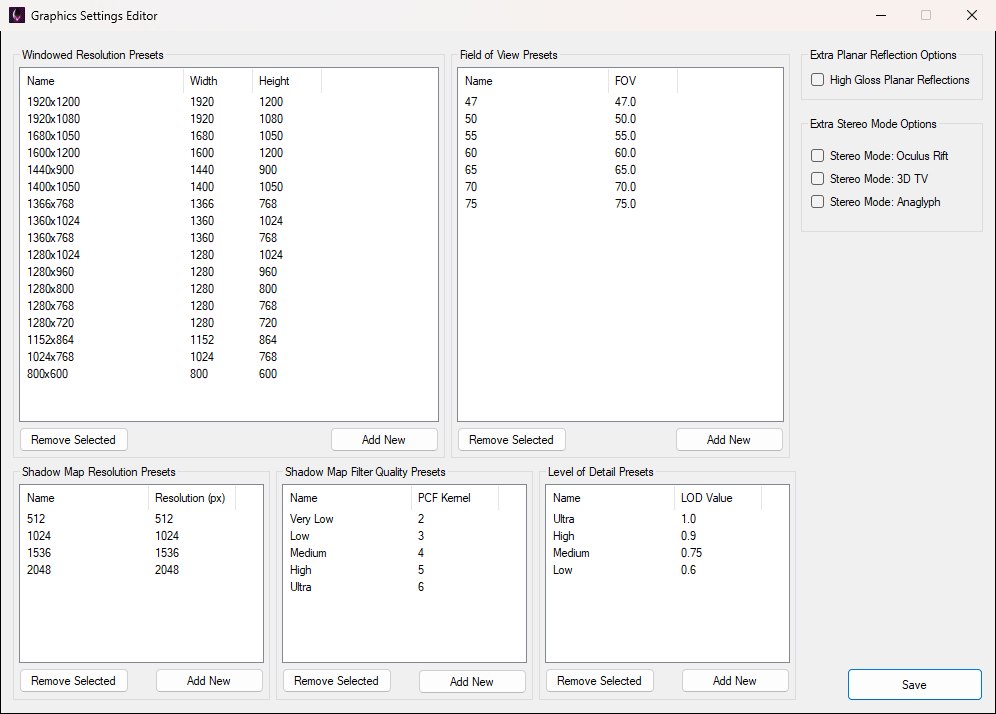
The editor as it opens on a stock ENGINE_SETTINGS.XML; the rows shown are the vanilla presets.
Each preset list has Add New and Remove Selected buttons beneath it. Add New opens the small popup shown below — give the entry a name and its value (windowed resolutions take a width and a height, as in the example), then click Add Item and it appears in the list. Remove Selected deletes the highlighted row; select one first, or the editor tells you nothing is selected. Your changes to the lists are not written to ENGINE_SETTINGS.XML until you click Save — OpenCAGE then confirms the save and warns that you may need to delete the game's settings save if you removed a preset the player still has selected, because the game can hard-crash loading a missing preset name. That warning is pictured under Reverting.
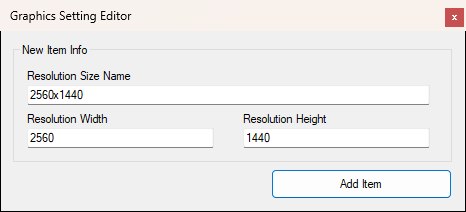
Add New opens this popup. Windowed resolutions ask for a name, width and height; the other lists ask for a name and a single value.
Customise the resolutions available in windowed mode. Values aren't capped to the monitor — larger options are scaled down to fit at runtime, but captures that hook the renderer (e.g. Steam screenshots) can still be taken at the full configured size.
Fullscreen resolutions aren't edited here; those come from the display hardware.
Customise FOV options outside of cutscenes. Values are vertical FOV, not the horizontal FOV many online sources quote. To convert from a horizontal FOV, use a FOV calculator.
Tweak available shadow map resolutions (in pixels). Vanilla options typically run from 512 to 2048; higher values such as 4096 generally work, at a GPU cost.
Controls shadow filtering quality via the PCF kernel (percentage-closer filtering). Higher kernel values improve filter quality and cost more performance. Background reading: PCF overview.
Tweaks LOD cutoff distance scalars. Vanilla values typically sit around 0.6–1.0. The field is uncapped — a very large value (e.g. 10000) can push the cutoff so far that high-detail assets stay loaded.
To disable LODs entirely for a level through scripting (rather than via a Video preset), use the LODControls entity.
Besides the preset lists, the editor also exposes two groups of checkboxes in its top-right corner, Extra Planar Reflection Options and Extra Stereo Mode Options, pictured below. All four are unticked on a stock install.
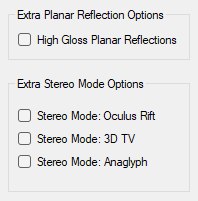
The two extra-option groups in the top-right corner of the editor; each ticked box adds one more choice to the in-game Video menu.
To restore stock graphics presets, open the Backup Manager, click Revert Configs, then Reset Graphics Settings. That overwrites DATA/ENGINE_SETTINGS.XML with the vanilla file and closes the game if it's running.
Reset only touches the install config — it does not clear the player's own settings save. If you removed presets they still have selected, clear that save as well (or re-add the missing preset names). The warning the editor shows after every Save, pictured below, is about exactly this.
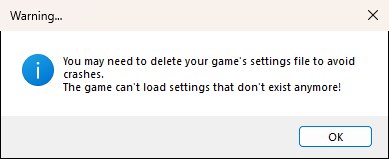
The warning shown after every Save — a removed preset the player still has selected can crash the game until their settings save is cleared or the preset is re-added.
