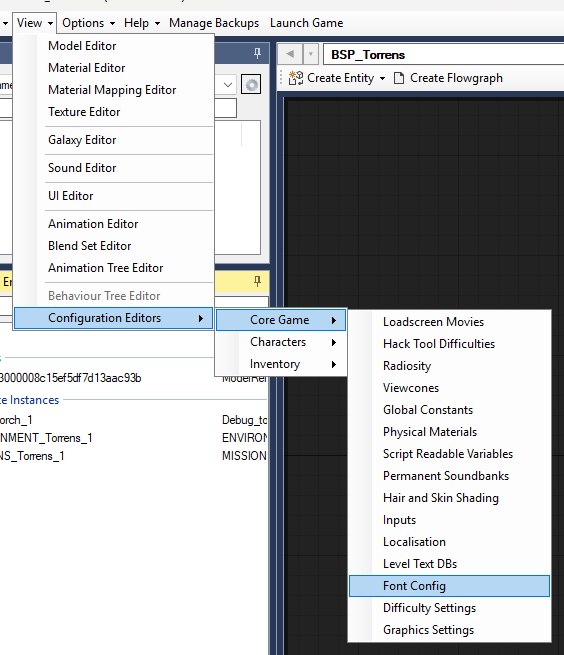
To edit the font config in OpenCAGE navigate to View > Configuration Editors > Core Game > Font Config, as shown below. This opens the Font Config Editor; there is no Save button, as every change is written to the config the moment you make it.
The font config decides which typeface each language uses for each of the game's named font slots, and which Scaleform font library those faces are loaded from. Pick a language from the Language list on the left to see its settings.
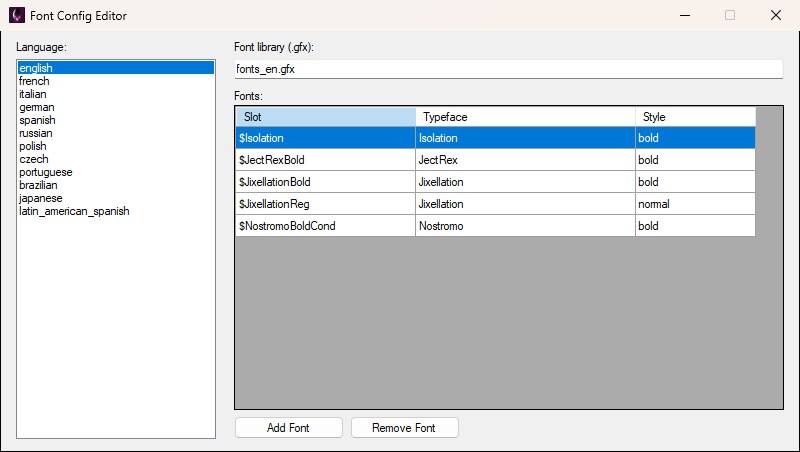
The Font Config Editor as it opens: languages on the left, the selected language's library and font slots on the right.
Font library (.gfx) is the Scaleform library this language's faces come out of — fonts_en.gfx, for example. Languages that need different glyph sets point at different libraries; a library must actually contain a typeface before a slot can use it, and the library itself has to exist in DATA/UI.PAK. Russian is the one retail language that uses a different library: it points at fonts_ru.gfx and swaps the Isolation and Jixellation typefaces for the Cyrillic faces Isolation_Bold_RU and JixellationRU from that library, as shown below.
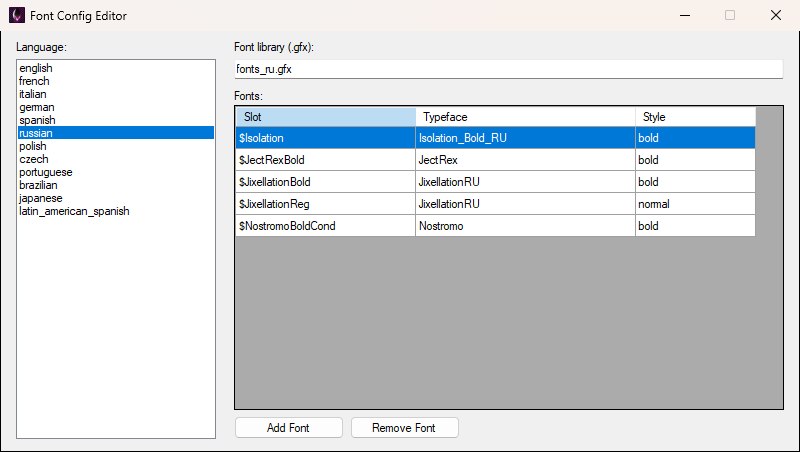
Russian points at fonts_ru.gfx and swaps two of its typefaces for Cyrillic faces from that library; the JectRex and Nostromo slots are unchanged.
The Fonts grid maps each of the game's font slots to a typeface and style from the library, one row per slot. Slot is the name the game's UI asks for ($Isolation, $NostromoBoldCond and so on — rename one the UI still asks for and that text is left unstyled), Typeface is the face inside the library (Nostromo, for example) and Style is one of normal, bold, italic or bold_italic. All three columns are edited in place: select a cell and start typing, or press F2; below, the Style cell of the $JixellationReg row is open for editing. Use Add Font to give the language a slot it doesn't yet have (it appends a $NewFont row using Isolation in bold, with the slot name ready to overtype), and Remove Font to drop the selected one.
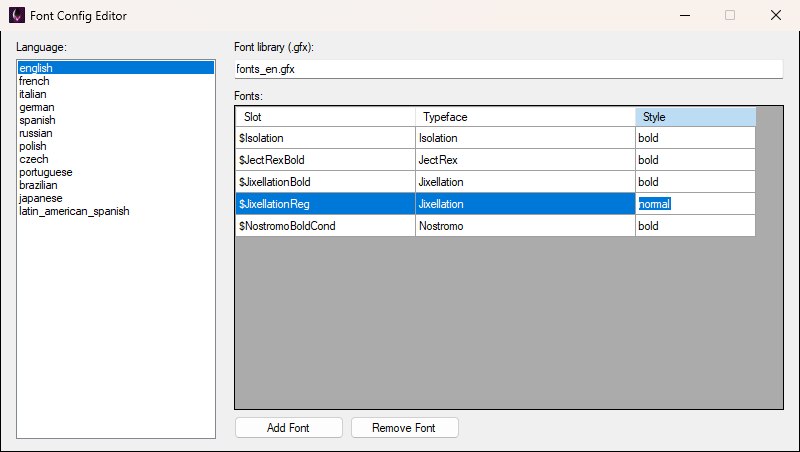
Editing a slot's style in place; the change is written to the config as soon as it is typed.
The PC build reads DATA/FONT_CONFIG.XML. The Switch and mobile builds ship the same data as FONT_CONFIG_SWITCH, and some installs also carry a .BML copy beside the XML. The editor loads whichever of these exists (XML first) and writes every variant it finds after each edit, so the copies can't drift apart.
