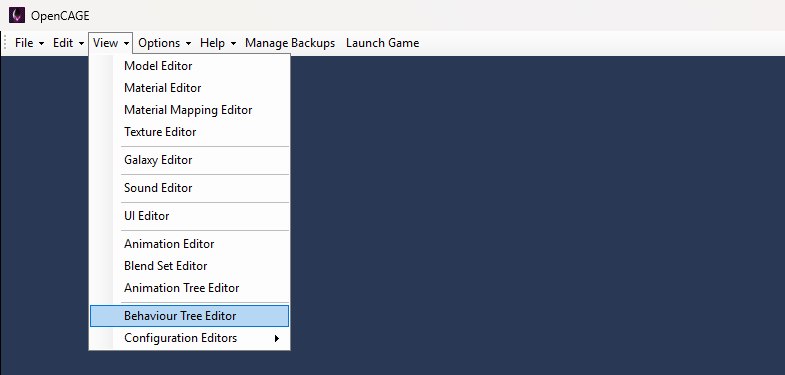
Open View → Behaviour Tree Editor (shown below) to launch the OpenCAGE Behaviour Tree Editor. Unlike the other editors under View, this runs as a separate process (a Brainiac Designer fork with OpenCAGE's LegendPlugin node set) and works on global AI data — you don't need a level loaded. It follows OpenCAGE's Dark Mode as it was when you opened it; if you switch theme later, the editor changes the next time you open it.
Authoritative trees live in:
DATA/BINARY_BEHAVIOR/_DIRECTORY_CONTENTS.BML — packed catalogue the game loadsOn startup the editor extracts every tree to DATA/BEHAVIOR/*.xml for editing (it clears existing XMLs first) and lists them under Behaviours in the Explorer, as shown below. That folder is scratch space — don't treat leftover XMLs as a permanent source of truth.
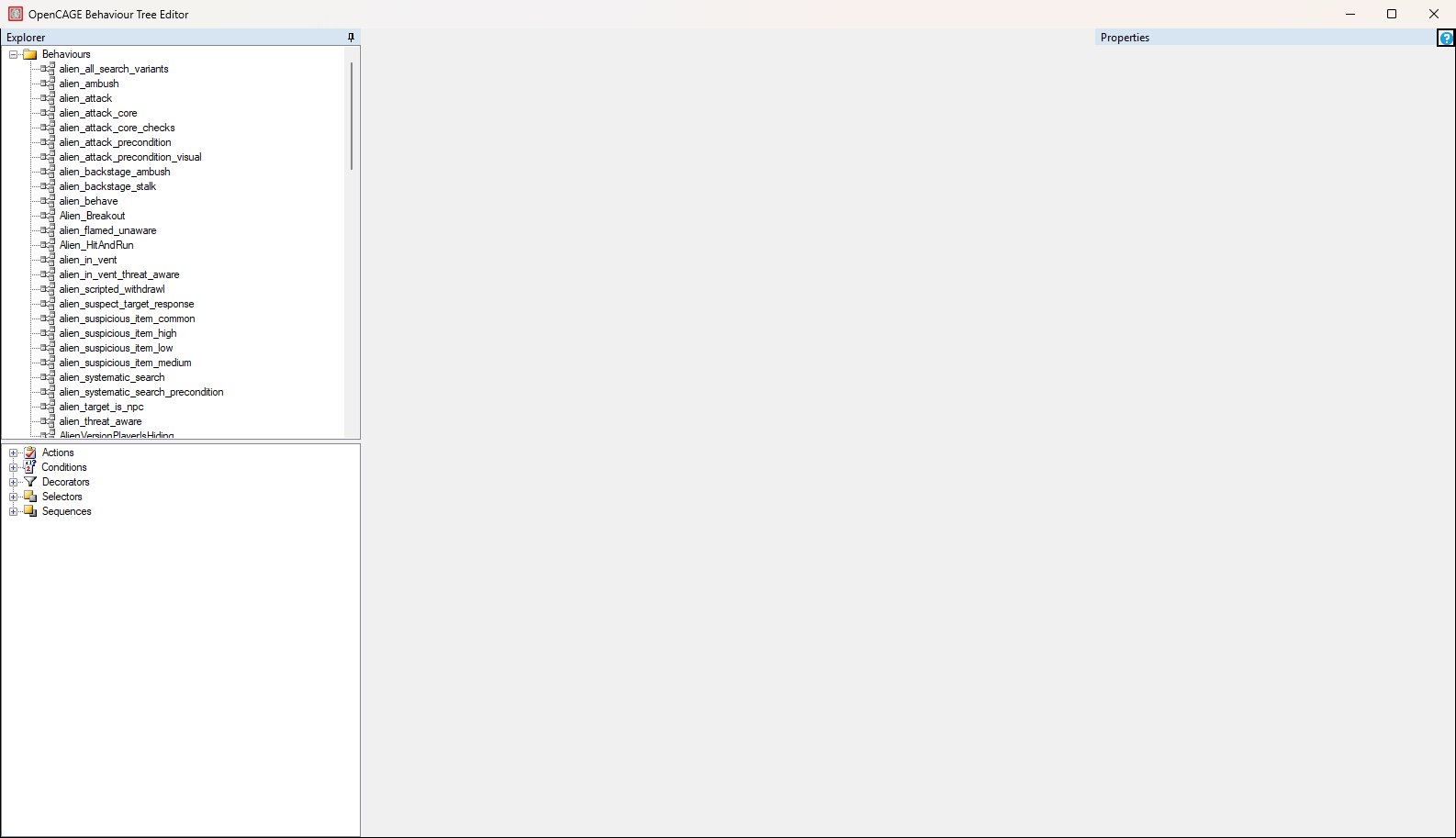
Nothing is open yet: the palette groups under the tree list start collapsed, and the document area and Properties panel stay empty until you open a tree.
Closing OpenCAGE, or choosing View → Behaviour Tree Editor again, kills any open Behaviour Tree Editor instance without prompting. Save first if you have unsaved graphs.
While the editor is open, the Mod Manager won't install or remove mods that change DATA/BINARY_BEHAVIOR or DATA/BEHAVIOR. It asks you to close the editor first, saving anything you changed in it, because the editor keeps its own copy of the trees and would save it over the mods' changes.
The main layout:
Double-click a tree in Explorer to open it as a document tab, as shown below. Drag nodes from the palette onto the canvas and wire the graph; select a node to edit its properties in the Properties panel (Show Properties, next to Save, pops the selected node's properties out into a floating panel). Left-drag the background to pan and scroll to zoom when a graph runs off the canvas, as it does here. The ? button in the window's top-right corner opens the Behaviour Tree Nodes reference.
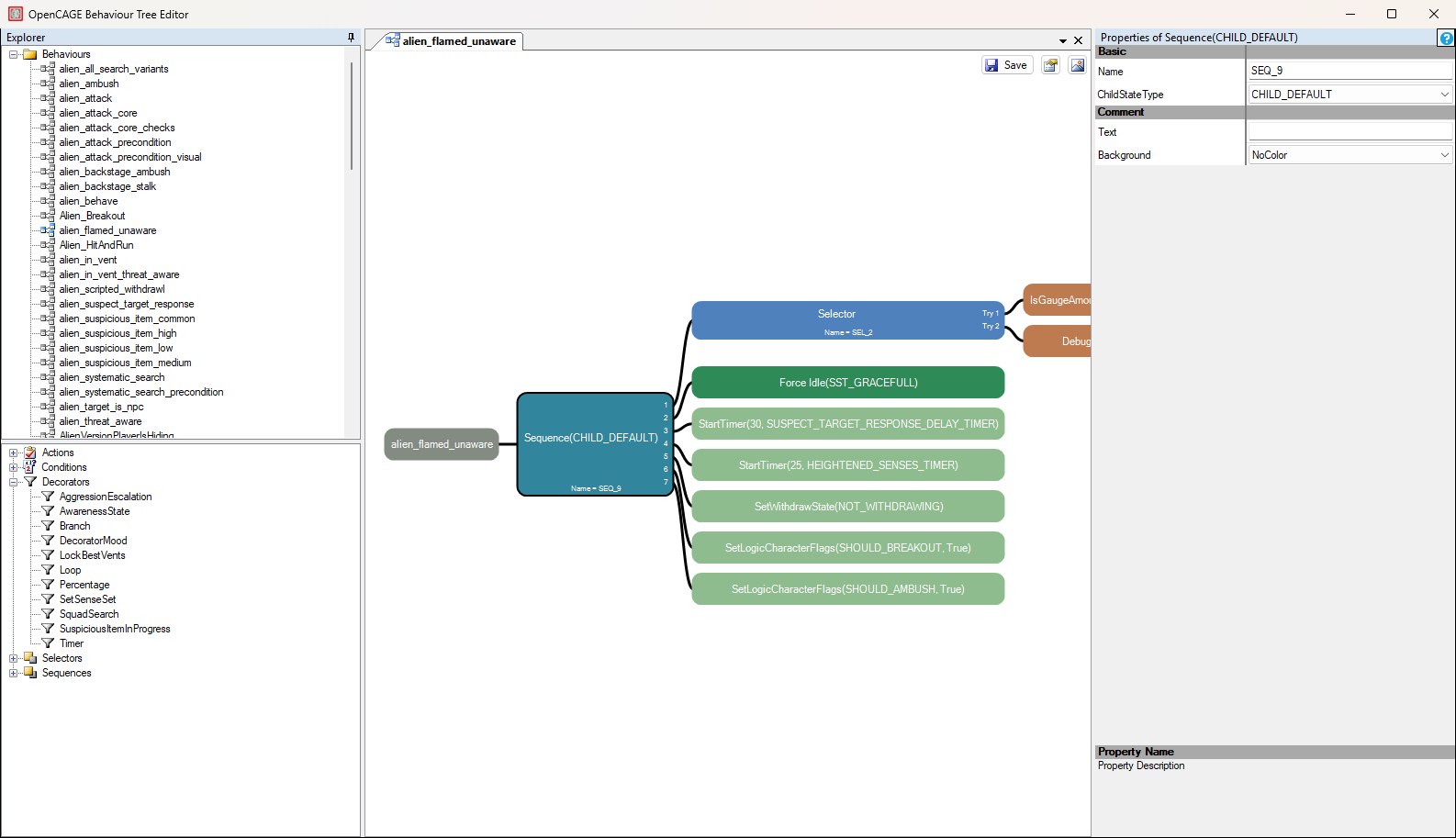
alien_flamed_unaware open in a document tab with its Sequence node selected; the node's parameters appear in the Properties panel on the right.
You can also export a graph snapshot with the Save Image Of Behavior button, the rightmost of the three in the canvas's top-right corner (the dialog is titled Save Graph As Image; *.emf or *.png). Levels don't hold trees of their own: each level's WORLD/BEHAVIOR_TREE.DB only lists which trees its characters can run, and OpenCAGE generates that list when the level is saved (see Assigning Trees).
Click New Tree... on the Explorer's toolbar, or right-click the tree list and choose New Behaviour Tree.... In the New Behaviour Tree dialog, give the tree a Name, choose what to Start from, and click Create:
alien_behave, starts you from that character's behaviour instead.A name can use letters, digits and underscores (up to 64 characters), and must differ from every other tree's by more than capitalisation. The tree is created and added to _DIRECTORY_CONTENTS.BML straight away, and opens in a new tab.
Rename (F2, or from the right-click menu) and Delete follow the same naming rules. A tree that's still in use can't be renamed or deleted: the editor says what's using it — another tree that references it (including an open tree with unsaved changes), a character class that runs it, a level whose list of trees still names it, or the game itself (it always needs PlayerBehaviour and NoBehaviour). A level's list only changes when the level is saved in OpenCAGE, so once no class uses a tree, save the levels named before deleting it. Changing only the capitalisation of a name is allowed, because the game finds trees ignoring case.
A new tree does nothing until a character class runs it (see Assigning Trees) or another tree references it.
Shortcuts depend on focus — graph canvas vs Explorer. There is no Ctrl+S save shortcut; use the Save button in the top-right corner of the open tree's canvas (its tooltip reads Save Behavior). The same list of controls is available in OpenCAGE under Options → Controls, on the Behaviour Tree Controls tab.
When the behaviour graph has focus:
Copy / cut / delete apply to non-root nodes only. There is no undo/redo on the canvas.
When the Explorer tree list has focus:
Both keys only act when the tree list has focus, not the node palette under it, and both refuse a tree that's in use (see Creating Trees). The same commands are on the Explorer's toolbar (New Tree..., Delete) and on the tree list's right-click menu. Explorer does not use Ctrl+C / Ctrl+V / Ctrl+X, and Delete here removes trees from the catalogue, not nodes from an open graph.
Use the Save button at the top-right of the tree's canvas (shown below) — not OpenCAGE's File → Save Level. Save writes XML for the tree(s), then repackages all DATA/BEHAVIOR/*.xml files back into _DIRECTORY_CONTENTS.BML. Creating, renaming and deleting a tree repackage it straight away too. If one of those files can't be read, has no root node for the game to load, or references a tree that doesn't exist, nothing is written and the editor names the file: a broken tree there would hand every tree after it to the wrong characters. Until that's fixed you can't create, rename or delete trees, and closing the editor with unsaved changes stops so you can fix it. If the editor is closed anyway, it asks the next time it starts whether to keep the trees that weren't written or load the game's copy instead.
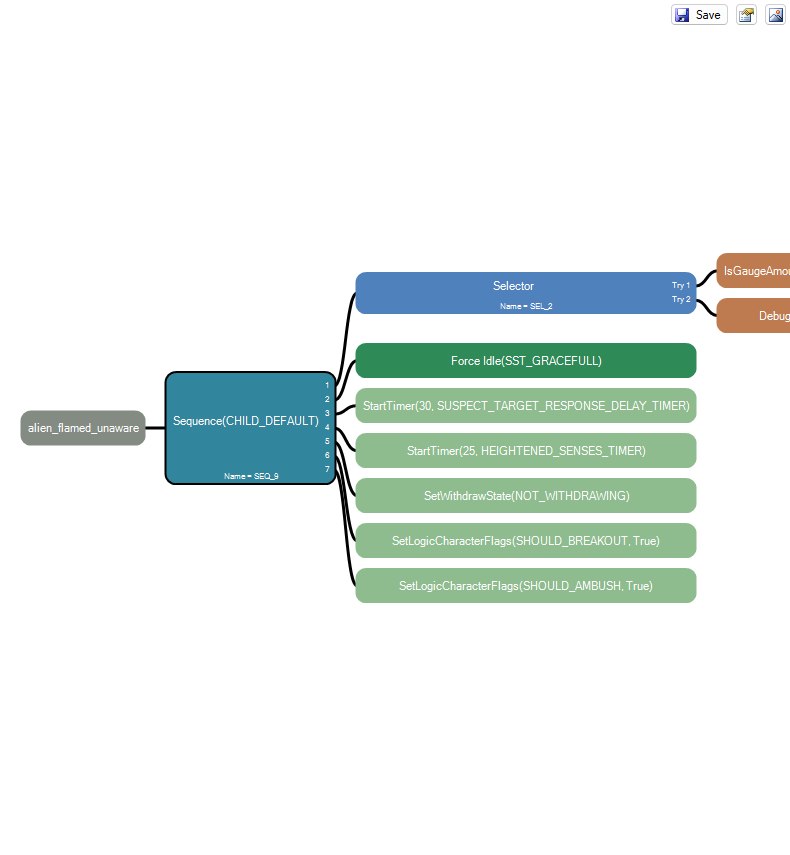
Each open tree has its own Save button at the top-right of its canvas; beside it are Show Properties and Save Image Of Behavior.
If you close the editor's window with unsaved graphs, the Unsaved Behaviors dialog lists them with checkboxes and offers Save Selected Behaviors, Discard All Unsaved Changes, or Cancel.
Editing a tree changes the global definition. To point a character at a tree name from that catalogue, use View → Configuration Editors → Characters → Attributes and the Behaviour Tree field (names come from _DIRECTORY_CONTENTS.BML, so a tree you've just created is listed as soon as you switch back to the Attributes editor).
The game only loads the trees a level lists in its WORLD/BEHAVIOR_TREE.DB. OpenCAGE generates that list from the character attribute configs every time a level is saved: the tree each character class runs, plus PlayerBehaviour and NoBehaviour, which the game gives to players itself. So after giving a class a new tree, save each level you're going to play before launching it — a character whose tree its level doesn't list crashes the game when it spawns. When you close the Attributes editor after changing a tree, it lists the levels that still need saving.
To restore stock trees, open the Backup Manager → Revert Configs → Reset Behaviour Trees. That closes the game and Behaviour Tree Editor if open, restores the vanilla BML, and refreshes the DATA/BEHAVIOR extract. Trees you created are removed: if a character class still runs one, OpenCAGE says which, and that class needs pointing at another tree before you play.
